Showing posts with label NVGRE. Show all posts

Wednesday, August 20, 2014

10.000 Downloads!

10.000 downloads!

WOW!

Our whitepaper “Hybrid Cloud with NVGRE (Cloud OS)” has reached an unbelievable milestone today.
The paper has been downloaded more than 10.000 times!

I am truly humbled and honored to know that our effort by writing this whitepaper has been greatly appreciated by the community worldwide.

The Story

The initial idea back in October in 2013 was to create a comprehensive guide that would help people to implement Network Virtualization (NVGRE) using System Center Virtual Machine Manager 2012 R2 and Hyper-V in Windows Server 2012 R2.
I started the job together with Flemming Riis – which had this real-world fabric available for us to test, crash and build. Learn, apply, and repeat.

The first release was based on the Preview bits of the Cloud OS and we decided to update the content with the RTM builds as soon as possible; in order to address many questions we knew would arise in the different TechNet forums.

Our reviewers was Daniel Neumann and Stanislav Zhelyazkov.

We had now a new version.

In addition, we added a comprehensive “FAQ” chapter to the paper based on experience from early adoption, TechNet forums and feedback.
This is when we decided that we had to “hire” Stanislav Zhelyazkov. He provided us with unique details that gave a much better quality to the whitepaper, and especially around this section.

This was the third version.

Our forth version added Windows Azure Pack to the paper where we ended up putting NVGRE into context. We highlighted how to leverage the multi-tenant IaaS platform we had been building with VMM, with the service management API in Azure Pack. This was a big update, which included several other elements such as gallery items, remote console and much more.

Our fifth version is where we added a “FAQ” chapter for the Azure Pack part, and hence the “hiring” of Marc Van Eijk, which gave us a deeper insight and a better perspective based on his experience as well, and this is still the current version that we know are helping people on a day-to-day basis.

We know that this whitepaper has been greatly appreciated by Microsoft Support and is widely used by their customers when they are facing challenges regarding these technologies. That is truly a confirmation that we really did something useful this time J

My promise to you:

Instead of putting too much effort into books with all those heavy processes, I will instead continue to write fresh, up-to-date and deep technical whitepapers that can make your life easier.
That means that you can expect more to come from this side as we are seeing new releases of this stack.

I also know that my team are with me and on behalf of them; I can only say that we are very grateful and appreciate all the feedback we have received on our way.

A big thank you from me, Flemming, Stanislav, Daniel and Marc!

Wednesday, April 9, 2014

Hybrid Cloud with NVGRE (Cloud OS) - Updated Whitepaper

Hi everyone!

It's been quite the last weeks, right? But hopefully you should be able to understand why, after looking into our updated whitepaper.

We have published our updated whitepaper that also covers Windows Azure Pack!

You can download the whitepaper by using the same link as always, available here:

http://gallery.technet.microsoft.com/Hybrid-Cloud-with-NVGRE-aa6e1e9a

Looking forward to your feedback!

A big thank you to Marc, Flemming, Stan, Daniel and Damian!

Monday, March 24, 2014

Whitepaper update!

Hi everyone. This is just a heads up for our upcoming update of our whitepaper.
Together with experts like Flemming, Damian, Daniel, Marc and Stan the man, we are proud to say that we are almost done with a major update.
We have added something very interesting to our whitepaper so that you can get the best experience on how to learn the configuration steps to deliver a multi-tenant infrastructure as a service cloud.

So, what have we done this time?

Windows Azure Pack plays an important role for the service provider cloud, as well as for the enterprises. 
We wanted to show how you can fully leverage the setup of a multi-tenant fabric, with NVGRE enabled, when using Windows Azure Pack together with Service Provider Foundation. Therefore, the scope was to add content that walks you through the configuration, so that you can have a complete WAP solution running, enabling the VM Cloud. 

The following content has been added:

·         Adding the VM Cloud Resource Provider – we will see how we can add the VMM cloud we will be creating in part 1 into Windows Azure Pack and use this foundation for our IaaS services.
·         Adding gallery Items to the VM Cloud – create and add Gallery Items to the VM cloud, so that tenants who subscribe to the plan, can deploy sophisticated services by simply clicking on a few buttons.
·         Configuring Remote Console with RD Gateway – We want to provide our tenants with the option of remote into their virtual machines, without requiring the VMs to be on a connected network.
·         Creating Plans – we will include our VM Cloud in a Plan so that tenants can subscribe and deploy workloads in our multi-tenant fabric, which also will cover explanation of our management stamp, architecture and modeling of clouds in VMM for use with Plans.
·         Tenant experience – the look and feel, as well as the experience for our tenants when subscribing to Plans.
·         Creating VM networks – how to create VM networks – using NVGRE in the fabric, combining both NAT and S2S VPN for hybrid environments.
·         Deploying workloads – deploy Active Directory Domain Controllers, SQL Servers and other customized VM roles to simplify the tenant experience.

When can we download the updated whitepaper?

The updated content should be available in the end of this week (we will let you know), and as always, we are looking forward to your feedback!


Sunday, March 9, 2014

Software-Defined Networking with WSSC 2012 R2 Jump Start

Hi everyone.

As you may be aware of, we have been working extensively with network virtualization, as part of a software defined datacenter with the 2012 R2 releases.
Microsoft's Virtual Academy will soon have a new Jump Start, focusing solely on software-defined networking.

If you want to ask questions, you are more than welcome to do so during the event. I will, together with several experts be sitting in the expert panel to answers questions related to the topic.

Software-Defined Networking with Windows Server and System Center Jump Start

Free online event with live Q&A with the networking team: http://aka.ms/SftDnet
Wednesday, March 19th from 8am – 1pm PST

Are you exploring new networking strategies for your datacenter? Want to simplify the process? Software-defined networking (SDN) can streamline datacenter implementation through self-service provisioning, take the complexity out of network management, and help increase security with fully isolated environments. Intrigued? Bring specific questions, and get answers from the team who built this popular solution!

Windows Server 2012 R2 and System Center 2012 R2 are being used with SDN implementations in some of the largest datacenters in the world, and this Jump Start can help you apply lessons learned from those networks to your own environment. From overall best practices to deep technical guidance, this demo-rich session gives you what you need to get started, plus in-depth Q&A with top experts who have real-world SDN experience. Don't miss it!

Register here: http://aka.ms/SftDnet


Check out the www.MicrosoftVirtualAcademy.com for other free training and live events.

Friday, February 28, 2014

Network Virtualization - Troubleshooting and FAQ


It’s been a while since we published our whitepaper based on Windows Server 2012 R2, Hyper-V and System Center 2012 R2.

http://gallery.technet.microsoft.com/Hybrid-Cloud-with-NVGRE-aa6e1e9a

What I can say, is that we are working on something new and exciting related to this, and hopefully you will stay tuned to embrace it once it is available.

Besides that, we have been working on many, both small and huge projects where NVGRE is a part of the mix, and seen a thread or two in the forums as well.
As a result of this, we have ran into many challenges, been troubleshooting the bits and bytes and learned a lot.
I would like to say that there is not a thing I haven’t seen yet, nor discussed with customers, but I believe it’s more to come.

Network Virtualization is especially interesting for service providers, but also enterprises seems to adopt this technology. The experience so far is that Windows Azure Pack is a natural consequence of this technology, either for the internal IT department for provisioning and configuration, or for those who would like to offer IaaS or having their test/development environment available from anywhere.

The questions are many, and the complexity is enormous.

Hence I would like to announce that we will update the whitepaper shortly with a troubleshooting section (extended) and also add a FAQ.
This experience is based on late nights, hours, days, weeks and months, stuck at different airports, on small hotel rooms and a huge amount of coffee.

I hope you will appreciate it more than my girlfriend will.


See you all next week.

Monday, February 24, 2014

Configuring Metrics and Static Routes for your virtualization gateways

After we published our whitepaper, I have been working with many enterprise organizations and service providers in order to deliver a successfully NVGRE implementation.
The journey has been great and interesting, and I know for sure that the whitepaper should get updated very soon with additional tricks & tips.

Recently, we had a scenario where the gateway VMs would require default gateways for both management and front-end.
This caused some issues at first, and the result is as follow:

If you have default gateway configured on the routable management network, VMM and the gateway VM can communicate and is quite happy with that.

If you have default gateway configured on the front-end network (the one that faces the internet), then the tenants should get internet access and are quite happy with that.
The problem is that the gateway VM without any metric is not able to determine the correct route every time, so your tenants will most likely not get a successful connection to internet.

A quick cmdlet to check the routes on your gateway VM ( route print) should show you the desired route to 0.0.0.0. if this is the management network, you will have problems.
The solution is to add metrics so that the gateway VM can ensure connectivity to the right networks.

Metric for management gateway: 300
Metric for front-end gateway: 200

In addition, we ended up with static routes for the gateway VM, for the different networks.
This lead to a stabile NVGRE environment where the gateway VM could continue to be managed by VMM, and the tenants could have a stable internet connection.

Management
route add 10.0.0.0 mask 255.255.255.0 10.0.0.1 METRIC 300

Front-end

route add 0.0.0.0 mask 0.0.0.0 77.233.248.1 METRIC 200

Thursday, February 6, 2014

Configuring Remote Console for Windows Azure Pack


Configuring Remote Console for Windows Azure Pack

This is a blog post that is part of my Windows Azure Pack findings.
Lately, I have been very dirty on my hands, trying to break, fix and stress test Windows Azure Pack and its resource providers.
Today, I will explain how we configure Remote Desktop as part of our VM Cloud resource provider, to give console access to the virtual machines running on a multi-tenant infrastructure.

Background

Windows Server 2012 R2 – Hyper-V introduced us for many new innovations, and a thing called “Ehanced VM session mode”, or “RDP via VMBus” was a feature that no one really cared about at first.

To put it simple: The traditional VMConnect session you initiate when connecting to a virtual machine (on port 2179 to the host, that then exposes the virtual machine) now supports redirecting local resources to a virtual machine session. This has not been possible before, unless you are going through a TCP/IP RDP connection directly to the guest – that indeed required network access to the guest.

Hyper-V’s architecture has something called “VMBus” which is a communication mechanism (high-speed memory) used for interpatition communication and device enumeration on systems with multiple active virtualized partitions. If you do not install the Hyper-V role, the VMBus is not used for anything. But when Hyper-V is installed, the VMBus are responsible for communication between parent/child with the Integration Services installed.
The virtual machines (guests/child partitions) do not have direct access to the physical hardware on the host. They are only presented with virtual views (synthetic devices). The synthetic devices take advantages when Integration Services is installed for storage, networking, graphics, and input system. The Integration Services is a very special virtualization aware implementation, which utilizes the VMBus directly, and bypasses any device emulation layer.

In other words:

The enhanced session mode connection uses a Remote Desktop Connection session via the VMBus, so no network connection to the virtual machine is required.

What problems does this really solve?

·         Hyper-V Manager let you connect to the VM without any network connectivity, and copy files between the host and VM.
·         Using USB with the virtual machine
·         Printing from a virtual machine to a local printer
·         Take advantage of all of the above, without any network connectivity

·         Deliver 100% IaaS to customers/tenants

The last point is important.

If you look at the service models in the cloud computing definition, Infrastructure as a Service will give the tenants the opportunity to deploy virtual machines, virtual storage and virtual networks.
In other words, all of the fabric content is managed by the service provider (Networking, Storage, Hypervisor) and the tenants simply get an operating system within a virtual machine.
Now, to truly deliver that, through the power of self-service, without any interaction from the service provider, we must also support that the tenants can do whatever they want with this particular virtual machine.
A part of the operating system is also the networking stack. (Remember that abstraction is key here, so the tenant should also manage – and be responsible for networking within their virtual machines, not only their applications). So to let tenants have full access to their virtual machines, without any network dependencies, Remote Desktop via VMBus is the solution.


Ok, so now you know where we’re heading, and will use RDP via VMBus together with System Center 2012 R2 and Windows Azure Pack. This feature is referred to as “Remote Console” in this context, and provides the tenants with the ability to access the console of their virtual machines in scenarios where other remote tools (or RDP) are unavailable. Tenants can use Remote Console to access virtual machines when the virtual machine is on an isolated network, an untrusted network, or across the internet.

Requirements

Windows Server 2012 R2 – Hyper-V
System Center 2012 R2 – Virtual Machine Manager
System Center 2012 R2 – Service Provider Foundation (which was introduced in SP1)
Windows Azure Pack
Remote Desktop Gateway

The Remote Desktop Gateway in this context will act (almost similar) like it does for the VDI solution, signing connections from MSTSC ro the gateway, but rather redirect to VMBus and not a VDI guest.

After you have installed, configured and deployed the fabric, you can add the Remote Desktop Gateway to your VM Cloud resource provider. You can either add this in the same operation as when you add your VMM server(s), or do it afterwards. (This requires that you have installed a VM with the RDGateway role, configured SSL certificates, both for VMMàHost->RDGW communication, and CA cert for external access).


Before we start to explain about the required configuration steps, I would like to mention some important things.
This has been a valuable learning experience, and I have been collaborated with Marc Van Eijk (Azure MVP), Richard Rundle (PM at MS), Stanislav Zhelyazkov (Cloud MVP), and last but not least, Flemming Riis (Cloud MVP).
Thanks for all the input and valuable discussions, guys!

As part of this journey, I have been struggling with certificates to get everything up and running. As you may be aware of, I am not a PKI master, and I am not planning to become one either, but it is nice to have a clear understanding of the requirements in this setup.

1)      The certificate you need for your VMM server(s), Hyper-V hosts (that is a part of a host group that is in a VMM cloud, that is further exposed through SPF to a Plan in WAP) and the RD Gateway can be self-signed. I bet many will try to configure this with self-signed certificates in their lab, and feel free to do so. But you must configure it properly. I’ve been burned here. Many times.
2)      The certificate you need to access this remotely should be from a CA. If you want to demonstrate or use this in a real world deployment, this is an absolute requirement. This certificate is then only needed on the RD Gateway, and should represent the public FQDN on the RD Gateway that is accessible on port 443 from the outside.
3)      I suggest you repeat step 1 and 2 before you proceed.
4)      I also suggest you to get your hands on a trusted certificate so that you don’t have to stress with the Hyper-V host configuration, as described later in this guide

Configuring certificates on VMM

If you are using self-signed certificates, you should start by creating a self-signed certificate that meets the requirement for this scenario.

1)      The certificate must not be expired
2)      The Key Usage field must contain a digital signature
3)      The Enhanced Key Usage field must contain the following Client Authentication object identifier: (1.3.6.1.5.5.7.3.2)
4)      The root certificate for the certification authority (CA) that issued the certificate must be installed in the Trusted Root Certification Authorities certificate store
5)      The cryptographic service provider for the certificate must support SHA256

You can download makecert, and run the following cmdlet to create a working certificate:

makecert -n "CN=Remote Console Connect" -r -pe -a sha256 -e <mm/dd/yyyy> -len 2048 -sky signature -eku 1.3.6.1.5.5.7.3.2 -ss My -sy 24 "remoteconsole.cer"

Once this is done, open MMC and add the certificate snap-in and connect to local user.
Under personal, you will find these certificates.

1)      Export the certificate (.cer) to a folder.
2)      Export the private key (.pfx) to a folder – and create a password

For the VMM server, we load the pfx into the VMM database so that VMM doesn’t need to rely on the certs being in the cert store of each node. You shouldn’t need to do anything on the VMM server except import the pfx into the VMM database using Set-SCVMMServer cmdlet. The VMM server is responsible for creating tokens.
Now, open VMM and launch the VMM Powershell module, and execute these cmdlets, since we also must import the PFX to the VMM database:

$mypwd = ConvertTo-SecureString "password" -AsPlainText -Force
$cert = Get-ChildItem .\RemoteConsoleConnect.pfx
$VMMServer = VMMServer01.Contoso.com
Set-SCVMMServer -VMConnectGatewayCertificatePassword $mypwd -VMConnectGatewayCertificatePath $cert -VMConnectHostIdentificationMode FQDN -VMConnectHyperVCertificatePassword $mypwd -VMConnectHyperVCertificatePath $cert -VMConnectTimeToLiveInMinutes 2 -VMMServer $VMMServer

This will import the pfx, and configure VMM to setup the VMConnectGateway password, certificate, the host identification mode (which is FQDN) and the time to live in minutes.

Once this is done, you can either wait for VMM to refresh the Hyper-V hosts in each host group – to deploy the certificates, or trigger this manually through powershell with this cmdlet:

Get-SCVMHost -VMMServer "VMMServer01.Contoso.com" | Read-SCVMHost

Once each host is refreshed in VMM, it installs the certificate in the Personal certificate store of the Hyper-V hosts and configure the Hyper-V host to validate tokens by using the certificate.

The downside of using a self-signed certificate in this setup, is that we have to do some manual actions on the hosts afterwards:

Configuring certificates on the Hyper-V hosts

Hyper-V will accept tokens that are signed by using specific certificates and hash algorithms. VMM performs the required configuration for the Hyper-V hosts.

Since using a self-signed certificate, we must import the public key (not the private key) of the certificate to the Trusted Root Certificateion Authorities certificate store for the Hyper-V hosts. The following script will perform this for you:

Import-Certificate -CertStoreLocation cert:\LocalMachine\Root -Filepath "<certificate path>.cer"

You must restart the Hyper-V Virtual Machine Management service if you install a certificate after you configure Virtual Machine Manager. (If you have running virtual machines on the hosts, put one host at a time in maintenance mode with VMM, wait till it is empty, reboot, and perform the same action on every other hosts before you proceed. Yes, we are getting punished for using self-signed certificates here).

Please note:
This part, where the Hyper-V Virtual Machine Management Service requires a restart, is very critical. If remote console is not working at all, then it could have been due to the timing of when the self-signed certificate was added to the trusted root on the Hyper-V hosts. If the certificate is added to the trusted root after VMM has pushed the certificate, Hyper-V won’t recognize the self-signed cert as trusted since it queries the cert store on process startup, and not for each token it issues.

Now we need to verify that the certificate is really installed in the Personal certificate store of the Hyper-V hosts, using the following cmdlet:

dir cert:\localmachine\My\ | Where-Object { $_.subject -eq "CN=Remote Console Connect" }


Also, we must check the hash configuration for the trusted issuer certificate by running this cmdlet:

$Server = “nameofyourFQDNHost”

$TSData = Get-WmiObject -computername $Server -NameSpace "root\virtualization\v2" -Class "Msvm_TerminalServiceSettingData"

$TSData


Great, we are now done with both VMM and our Hyper-V hosts.

Configuring certificates on the Remote Desktop Gateway

This Remote Desktop Gateway can only be used for Remote Console once it is configured for this. A configuration change will occur, which makes the gateway unusable for other purposes, as we will install an authentication plug-in from VMM media to this server.

In order to support federated authentication, VMM has a VMM Console Connect Gateway which is located at CDLayout.EVAL\amd64\Setup\msi\RDGatewayFedAuth.

For a HA scenario, you can install multiple quantities of RD Gateways with the Console Connect Gateway behind a load balancer.

Once you have installed and configured the RD Gateway with a trusted certificate from a CA for the front-end part (the public FQDN that is added to the VM Cloud resource provider in WAP), you can move forward and import the public key of the certificate into the Personal certificate store on each RD Gateway server, using the following cmdlet:

C:\> Import-Certificate -CertStoreLocation cert:\LocalMachine\My -Filepath "<certificate path>.cer"

Since we are using a self-signed certificate in this setup, we must do the same for the trusted root certification authorities certificate store for the machine account with the following cmdlet:

C:\> Import-Certificate -CertStoreLocation cert:\LocalMachine\Root -Filepath "<certificate path>.cer"

When the RD Gateway is authenticating tokens, it accepts only tokens that are signed by using specific certificates and hash algorithms. This configuration is performed by setting the TrustedIssuerCertificateHashes and the AllowedHashAlgorithms properties in the WMI FedAuthSettings class

Use the following cmdlet to set the TrustedIssuerCertificateHashes property:

$Server = “rdconnect.internal.systemcenter365.com”
$Thumbprint = “thumbrpint of your certificate”
$Tsdata = Get-WmiObject –computername $Server –NameSpace “root\TSGatewayFedAuth2” –Class “FedauthSettings”
$TSData.TrustedIssuerCertificates = $Thumbprint
$TSData.Put()

Now, make sure that the RD Gateway is configured to use the Console Connect Gateway (VMM plug-in) for authentication and authorization, by running the following cmdlet:

C:\> Get-WmiObject -Namespace root\CIMV2\TerminalServices -Class Win32_TSGatewayServerSettings


Next, we must make sure that the certificate has been installed in the personal certificate store for the machine account, by running the following command:

Dir cert:\localmachine\My\ | where-Object { $_.subject –eq “CN=Remote Console Connect” }


And last, check the configuration of the Console Connect Gateway, by running this cmdlet:

Get-WmiObject –computername $Server –NameSpace “root\TSGatewayFedAuth2” –Class “FedAuthSettings”

s


Now, if you have added your RD Gateway to Windows Azure Pack, you can deploy virtual machines after subscribing to a plan, and test the Remote Console Connect feature.


Monday, September 9, 2013

White paper - Hybrid Cloud with NVGRE (WSSC 2012 R2)

A very interesting weekend is over, and we are happy to announce the release of our white paper that covers implementation and configuration of network virtualization with Windows Server 2012 R2 Hyper-V, and System Center 2012 R2 - Virtual Machine Manager.


Download the white paper here

A couple of weeks ago, I was discussing network virtualization with a fellow MVP, Flemming Riis.
We decided quickly that we needed to embrace this technology and help the community to adopt it.
Generally speaking, NVGRE should be simple to implement, but when we add all the possible configuration options with VMM into the mix, we need to know what we are doing.
Let us be clear: if you consider to implement NVGRE, you should consider VMM to be mandatory. Period.

Flemming provided us with his own lab, running blades, SAN's and everything we needed to make this as realistic as possible.

Stanislav Zhelyazkov and Daniel Neumann had the role as technical reviewers and provided us with deep insight and helpful stuff that we either didn't know of, or had missed. Thank you guys.

Please note that this white paper is in its first release.
Once we reach RTM, additional content will be added.

- Site-2-Site VPN

- Self-service and tenants with Windows Azure Pack

If you have any comments or questions related to the white paper, please leave a comment.

thx.

-kn


Wednesday, September 4, 2013

Announcing the "Hybrid Cloud - with NVGRE (WS SC 2012 R2)" white paper

Announcing the NVGRE white paper

Ever since WS 2012 was in preview, the Hyper-V fans have been celebrating the opportunities for network virtualization.
First in VMM 2012 SP1 Beta, we saw there were two options to manage and implement network virtualization. IP-rewrite and NVGRE. Now, NVGRE is the standard that is implemented with Windows Server 2012 and System Center 2012 SP1 – Virtual Machine Manager.
However, the hybrid cloud story wasn’t complete. A critical component was missing to make the scenario production ready.

As Microsoft announced during TechEd this year, we will have a native virtualization gateway shipped together with Windows Server 2012 R2. The entire network virtualization can be implemented and managed by Virtual Machine Manager in System Center 2012 R2.
This did indeed increase the interest around network virtualization with technology from Microsoft, with no need for third party solutions to fulfill the story. Many users from around the world have been asking questions in the forums related to network virtualization in the past, and especially about virtualization gateway since this is available in Windows Server 2012 R2. To address this to the community, we decided to write a white paper that should be helpful for real world implementations.

Together with some fellow MVP’s, Flemming Riis and Stanislav Zhelyazkov, we started to deploy a new datacenter with the R2 preview bits in order to fulfill the Hybrid Cloud story.
We have not only deployed the solution, but we have also been breaking it apart to detect dependencies, eventual bugs, and concerns related to real world scenarios.

We are looking forward to finish the document in a couple of days, and we hope you will find it useful.

Sunday, June 30, 2013

How to add your virtualization gateways to SCVMM 2012 R2

Network Management with datacenter abstraction layer (SCVMM 2012 R2)

This blog post will show some of the cool new stuff related to network virtualization, and especially the support of network virtualization gateways through standard based management with SCVMM 2012 R2 and Windows Server 2012 R2.

The Software Defined Datacenter story was alright, but not good with Windows Server 2012  and System Center 2012 SP1.
My personal take on that, was mostly because of the third party requirements for virtualization gateways. Cisco have been working on some stuff, and so have many others.
However, Microsoft has listened to the feedback from their partners and customers, and made this native in both products.
You can now have your own virtualization gateway running in a VM (Windows Server 2012 R2) and manage it, end-to-end with Virtual Machine Manager 2012 R2.

First of all: You must have a dedicated physical Hyper-V server for this in your fabric, which is hosting the virtual machines with the RRAS role installed.
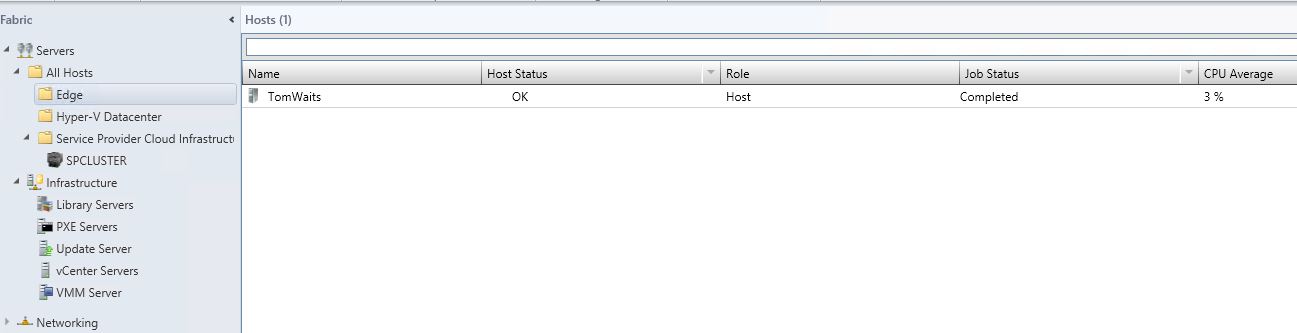
This Hyper-V host should be considered as an edge server, and not joined to the domain.
The virtual machines hosting the RRAS role should be joined to the domain and can be highly available in a cluster, and this is quite critical for production environments.

If you have structured your host groups in VMM very well, it could look something like this:

Next, let us add the Network Virtualization Gateway to the fabric in VMM.

1.       Navigate to the fabric pane in the VMM console, expand Network and right click Network Service to add a new network service


2.       Give your network service a name and a proper description.


3.       Specify manufacturer and model of the network service. Default, this is Microsoft and we must select the proper Model. You can see from the drop down list that you can add Microsoft Standards-Based Network switches, that will let you manage your switches and TOR switches. Microsoft Windows Server IP Address Management (IPAM) for a better integration with your entire Windows network infrastructure, and last but not least; Microsoft Windows Server Gateway.


4.       Specify your Run As account that have permission on the VM to install the VMM agent and configure the network service


5.       Specify the connection string. You can see the example in this step of the wizard. We need the VM host (in my case, it is TomWaits), and the RRASServer, which is the name of the virtual machine with the RRAS role installed. My RRAS server is NVGRE. Click next to proceed.


6.       If the connection string would have included any ports for SSL, a certificate may have been required. In my case, this doesn’t apply.


7.       Test and validate the network service configuration provider. This will run basic validation tests of the provider. Click test and verify that the critical tests are passed, and the others are implemented. Click next to proceed.


8.       Specify the host groups for which the network service will be available. In my case, I want all of my hosts groups to have access to this service. Click next twice, and VMM will add the network service to fabric.


9.       The last step that needs to be done, is to specify the configuration of each network connection on the virtualization gateway.

10.   Go back to fabric, network service and right-click on your virtualization gateway to list the properties. Click on connectivity and select both front end connection and back end connection. We will dive more into this in the next blog post.


Hopefully, this blog post shown how easy it was to leverage the standard based management experience of network virtualization gateways with SCVMM 2012 R2.

My next blog post will focus more on network virtualization gateways, and how to create the service template for network virtualization gateways.