Showing posts with label System Center. Show all posts

Monday, June 9, 2014

Working with the admin API in Windows Azure Pack

Working with the admin API in Windows Azure Pack

After many demos in the fabric, it was time for me to do some clean-up.
Instead of navigating through the admin portal to delete any unnecessary plans, subscriptions and users, I decided to access the admin API directly using Powershell instead.

After a basic implementation of Azure Pack, you have the following API’s:

Administrator API
REST APIs that are only available to Service Management for administrators. Default this Admin API is using port 30004, so the URI requests should reflect that.

Tenant API
REST APIs that are available for both administrators and tenants. Default the tenant API is using port 30005.

Public tenant API
Public REST APIs that support end-user subscription management for services presented by the service management API. Default the port is set to 30006.

As an administrator, I want to access the admin API in our environment to deal with the high-privileged services and this specific API is not exposed to the general public.
You should note that when you are working with the APIs, you better start to define some variables that reflects your configuration as you won’t be able to do much without them.

The fundamentals:

### Defining a variable for the admin API using the name of my management server and the default admin API port, which is 30004


### Defining a variable for the Admin Authentication Site in my environment. Default port is 300072 but is changed in this environment to use 443


### Defining a variable for the Client Realm, using the default value


### Defining a variable for the MGMTSVCToken

$token = Get-MgmtSvcToken -Type Windows -AuthenticationSite $AuthSite -ClientRealm $ClientRealm -DisableCertificateValidation


Once I have these variables in place, it is easy to access the admin API to get things done.
In the following example, I will get the information about the registered resource providers in our environment

PS C:\> Get-MgmtSvcResourceProvider -AdminUri $adminuri -Token $token -DisableCertificateValidation | select displayname, name

DisplayName                                                              Name                                                                  
-----------                                                              ----                                                                   
Monitoring Service                                                       monitoring                                                            
Marketplace Service                                                      marketplace                                                            
Virtual Machine Clouds                                                   systemcenter                                                          
Automation                                                               automation                                                            
Cloud Cruiser                                                            cloudcruiser                                                          
SQL Servers                                                              sqlservers                                                            


We can verify that we have several resource providers registered in this WAP environment.

Next, I want to see if there is any users here as well and if they are subscribing to any of the public plans.

PS C:\> Get-MgmtSvcUser -AdminUri $adminuri -Token $token -DisableCertificateValidation | select name, state, subscriptioncount

Name                                                                                       State                               SubscriptionCount
----                                                                                       -----                               -----------------
kristian.nese@lumagate.com                                                                Active                                               1
kn@demo.demo                                                                              Active                                               1
fr@flemmingriis.com                                                                       Active                                               1


In my case, I want to do a clean-up, so the user “kn@demo.demo“ will be deleted using the admin API.
First, I will have to delete any active subscriptions associated with this user, by running the following cmdlets:

PS C:\> Get-MgmtSvcSubscription -AdminUri $AdminURI -Token $token -DisableCertificateValidation | select accountadminliveemailid, subscriptionid

AccountAdminLiveEmailId                                                  SubscriptionID                                                        
-----------------------                                                  --------------                                                         
kristian.nese@lumagate.com                                               c999b510-a137-42f5-88f1-6cdbd913e3a3                                  
kn@demo.demo                                                             111a8d30-793c-42f9-9cc7-57f28a012fbb                                  
fr@flemmingriis.com                                                      c839b1be-f3ea-439d-a801-53000ccd14cd                                  


PS C:\> $subscription = Get-MgmtSvcSubscription -SubscriptionId "111a8d30-793c-42f9-9cc7-57f28a012fbb" -AdminUri $adminuri -Token $token -DisableCertificateValidation

PS C:\> Remove-MgmtSvcSubscription -SubscriptionId $subscription.SubscriptionID -AdminUri $AdminURI -Token $token -DisableCertificateValidation -Confirm


SubscriptionID          : 111a8d30-793c-42f9-9cc7-57f28a012fbb
SubscriptionName        : MVP Plan
AccountAdminLiveEmailId : kn@demo.demo
ServiceAdminLiveEmailId :
CoAdminNames            : {}
Features                :
OfferCategory           :
OfferFriendlyName       : MVP Plan
RegisteredServices      : systemcenter,sqlservers,cloudcruiser
Created                 : 6/5/2014 11:33:12 AM
AddOnReferences         : {}
AddOns                  : {}
State                   : DeletePending
QuotaSyncState          : InSync
ActivationSyncState     : Syncing
PlanId                  : MVPPlhqzhttra
Services                : {Microsoft.WindowsAzure.Server.Management.SubscriptionService,
                          Microsoft.WindowsAzure.Server.Management.SubscriptionService,
                          Microsoft.WindowsAzure.Server.Management.SubscriptionService}
LastErrorMessage        :
ExtensionData           :


Now it is time to delete the user itself by firing off the last cmdlet:

PS C:\> $user = Get-MgmtSvcUser -AdminUri $adminuri -Token $token -DisableCertificateValidation | where-object {$_.name -eq "kn@demo.demo"}

PS C:\> Remove-MgmtSvcUser -Name $user.Name -AdminUri $AdminURI -Token $token -DisableCertificateValidation -Confirm

I hope you had a good time reading this blog post and found the service management API interesting.
There will be some follow up to do where I will document on how to use the public tenant API where your tenants are able to do things by themselves. 

Sunday, January 27, 2013

NIC 2013 - Presentations available for download

The Nordic Infrastructure Conference took place in Oslo this week, and I had 3 sessions covering private cloud, VM mobility and Disaster Recovery.


This session was about System Center 2012 SP1 and how to configure and deploy the private cloud, covering all the components. Demos focusing on Virtual Machine Manager, App Controller, Operations Manager, Orchestrator and Service Manager.


Showing all the different migration scenarios, how to configure security and prepare for a mobile, flexible and dynamic infrastructure with Hyper-V in Windows Server 2012.


An overview of Hyper-V Replica and much demos showing the different scenarios, workflows and configurations.

Feel free to download and use these presentations.

Sunday, November 11, 2012

Infrastructure Planning and Design

This is a quick heads up for some important guides that should be on every system integrators table.

The Infrastructure Planning and Design guides from Microsoft http://www.microsoft.com/en-us/download/details.aspx?id=732

The planning phase on a project is the most important one.
The reason for that, is that you must ensure what the customer actually want to do, and how to meet the requirements. Let’s take the System Center components for example.
Although you can ramble on and install Operations Manager on a single server, this is unlikely very clever to do.

Things to consider prior to deployment:

·         What infrastructure is in place prior to the deployment?

·         Do you have to purchase additional hardware components to meet the requirements?

·         Will this lead to some change management?

·         Who’s involved in this project?

·         Will it involve down time for some (or all) of the production?

·         ETA?

This is just a few points to mention in this context, but the list could go on and on and on.
Read the different guides that are related to the projects you’re working with, and make sure you have considered the most important pitfalls.
Statistically, 8 of 10 IT projects are failing beyond recognition. If you read through the Infrastructure Planning and Design guides, you should be one step closer to a successful project.

Thursday, November 8, 2012

Your datacenter - your business

This is just a blog post to remind you of something important.

Over the last year, I’ve been running around to organizations to teach them cloud computing, and to give them a view of what Microsoft’s cloud solutions can do to help them further in their transformation.
One of the questions I ask during my visit is if they know how many physical hosts they have running in their datacenter, as well as the amount of virtual machines.

Most of the time, they can’t provide the exact number. No big deal?

It depends.

If it’s a hoster or an ISV; they are probably deploying and decommissioning virtual machines on the fly, all day long. However, they should at least know how many hosts they are running to know if they have the required capacity to meet their internal requirements to do business.

This is a clear sign that the management tools they are using, doesn’t give them the big picture of how things are going.

When we dive deeper into their processes and architecture, it’s common to see that the communication between the different IT-departments isn’t the best of the best. It’s all a lack of solid management tools – and those different tools aren’t integrated at all.

I often have to ask them where they are today – and where they’re planning to go.

This will most often start the journey through System Center, including Windows Server 2012 (Hyper-V) and Windows Azure – for extension and rapid burst.

Based on experience and results of the work we have done, it’s easy to see how System Center – not only addressing the technical concerns and issues that the organizations may have at the time, but also brings better communications, workflows and better service delivery between the different departments. All from the Fabric and up to human resources, System Center deals with it.

And that brings us back to the topic.
To deal with cloud computing – no matter if it’s private, public or hybrid, you must understand your own organization. What you’re doing at the moment (health check of your environment etc) and where you’re going. Both short-term and long-term is important here.
Some will probably state that the cloud solutions from Microsoft is far too expensive, when just looking at the licenses. But that’s a sign that they haven’t been presented with the big picture of all the components. Remember, it will embrace every single thing in your organization.

I can guarantee that the ROI will put a smile on your face, and it will stay there.

Monday, October 22, 2012

Working with runbooks in Orchestrator


Working with runbooks

With the new kind of science, which you get from Orchestrator, people are often amazed when they see this engine in action for the first time.
It’s a standard reply to all questions related to Orchestrator, and that is ‘yes’. Your imagination is the limit.

In this blog post, I will show to simple runbooks that does something you might find boring and repetitive if you are working as a sysadmin today.

The first runbook will create a new user in my Active Directory domain, and enable the account.

The second will create a new virtual machine in my cloud.

Yes, as I said. Two very simple runbooks. Although you can create workflows that integrates all from hardware, software – and even human resources, it’s often best to start with small chunks to remove the typical tasks that you’re not paid for anyhow. You should be focusing on much more important tasks than these two, but that would be the next phase.

Background:

System Center 2012 has a component called Orchestrator. This is the glue in the System Center stack, orchestrating the most simple – and also the most complex tasks in your environment. The workflows that you create could be a combination of activities and scripts, running on your terms.

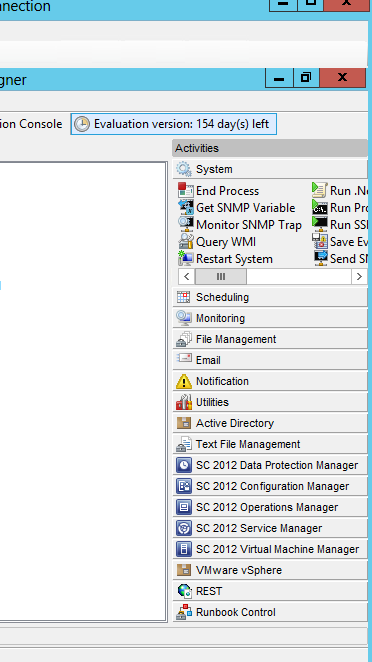
Orchestrator has a bunch of existing activities when you’re opening the runbook designer for the first time.

If you take a closer look at the picture, you will also find well-known Microsoft products and components as well as third parties. System Center 2012 has activities to each and every component, so that you can create extended functionality in your infrastructure, as well as automated tasks initiated by your users and customers, in conjunction with Service Manager’s self-service portal.


If you look closely, you can also see that I have imported an Integration Pack that integrates with VMware. But that’s another blog posts, and most likely it’s written by someone else.

Creating runbooks

Create a new Active Directory user

There are several ways to create runbooks. Some runbooks could be solely dedicated to system tasks, that runs either on a schedule, or is initiated by some system events and so on.

But if you want to create a runbook that should be presented to their users through some self-service mechanism, you would normally follow these steps:

1.       Initialize data

This activity will let you define parameters/inputs with different data types. For example, a user can specify user name, display name and other related information for a user object in Active Directory that will flow over the data bus to the next activity, which actually creates a new user based on the input in initialize data.

2.       Leveraging the activities from Active Directory Integration pack, will let you mix and match the most common tasks you would normally do manually. In this example, we will use the activity called Create User. The activity is connected to a domain controller in your environment. This is something you configure in the runbook designer itself, and also on each activity. The activities have several options related to them, and you can also add extras if you’d like. So the questions is: How can we get the data from the first activity and map them into the correct options in the next one?
 
In each option, you have the possibility to ‘subscribe’ on published data. Right click and click subscribe. This will let you map and address the data.  

3.       Enable the user is the last activity in this runbook. So once the user is created based on the input in the first activity, the account will be enabled.

Now, if you look at this runbook, you might think it’s simple, easy and not much of a hazzle to get things up and running.

However, I would like to stress that you should design your runbooks properly with some logging, alternative routes in case if an activity is failing and so on.

So let’s take a look at my second runbook.

Create a new virtual machine

We will start with the same task, initialize data. We want to combine this with a Service Offering in Service Manager, so that the users should be able to access this by themselves, with no need to access the actual management tools to perform this. (This is the beuty of self-service).

1.       Initialize data

I want my users to be able to create and deploy their virtual machines by themselves, without having the IT organization to interact each time. In addition, this must be as simple as possible, where the users have no idea of the underlying resources, or where it’s actually placed.

The only thing they should determine, is the name of the virtual machine – so that they can recognize it afterwards. 

2.       Create a VM from Template is the activity I will use. I have already create the sysprep’d VM, stored it in my library, and associated some profiles to make this magic happen.

3.       Start the Virtual Machine is the last activity, so they will be able to connect and access their resources once it’s comlpeted.

Again, a very simple runbook. But if you take a look at the data buses in this workflow, you can see I have differentiated them by using different colors. The blue ones are representing the data buses that went ok, and the red ones are related to errors.

To summarize, in case of an error during the process, the runbook will head over to the activity called ‘Send e-mail’ to notify some admins about what happen.

Hopefully, you got some ideas on how to get started with Orchestrator by now.

Use your imagination and try to start with the most boring tasks first thing first.

Next time, we’ll see how we can take this a step further with Service Manager.

Monday, September 10, 2012

System Center 2012 SP1 Beta is now available!


Oh yes.

Finally, System Center 2012 SP1 Beta is now available and this is the version that will work together with Windows Server 2012 RTM.


Windows Server 2012 and SQL Server 2012 Support
With this Beta release, all System Center 2012 SP1 components are now enabled to manage and run in a Windows Server 2012 environment.  System Center 2012 SP1 Beta also now supports the use of SQL Server 2012. 


Network Virtualization
With System Center 2012 SP1 you can take advantage of the Virtual Machine Manager’s ability to manage Hyper-V network virtualization across multiple hosts, simplifying the creation of entire virtual networks. 


Hybrid Cloud Management and the Service Provider Foundation API
System Center 2012 already enables optimization of your organization’s private cloud and Windows Azure resources from a single pane of glass, using the AppController component. In System Center 2012 SP1 we’ve extended AppController’s capabilities to include cloud resources offered by hosting service providers, giving you the ability to integrate and manage a wide range of custom and commodity IaaS cloud services into the same single pane of glass.


Service Provider Foundation API
The Service Provider Foundation (SPF) API is a new, extensible OData REST API in System Center 2012 SP1 that enables hosters to integrate their System Center installation into their customer portal and is automatically integrated with customers’ on-premises installation of AppController. A simple exchange of credentials enables enterprises to add the Service Provider cloud to App Controller for consumption alongside private and public cloud resources. SPF also has multi-tenancy built-in enabling operation at massive scale, controlling multiple scale-units built around Virtual Machine Manager.


Windows Azure Virtual Machine management
System Center 2012 SP1 now integrates with Windows Azure Virtual Machines enabling you to move on-premises Virtual Machines to run in Windows Azure and then manage from your on-premises System Center installation enabling a range of workload distribution and remote operations scenarios


Enhanced backup and recovery options
System Center 2012 SP1 Data Protection Manager adds the option to host server backups in the Windows Azure cloud, helping to protect against data loss and corruption while integrating directly into the existing backup administration interface in System Center. More details.


Global Service Monitor Support
System Center 2012 SP1 includes support for a new Windows Azure-based service called “Global Service Monitor” (GSM). GSM extends the application monitoring capabilities in System Center 2012 SP1 using Windows Azure points of presence around the globe, giving a true reflection of end-user experience of your application. Synthetic transactions are defined and scheduled using your on-premises System Center 2012 SP1 Operations Manager console; the GSM service executes the transactions against your web-facing application and GSM reports back the results (availability, performance, functionality) to your on-premises System Center dashboard. You can integrate this perspective with other monitoring data from the same application, taking action as soon as any issues are detected in order to achieve your SLA. To evaluate System Center 2012 SP1 with GSM, sign up for the customer preview of GSM.


Begin your evaluation of System Center 2012 SP1 with Windows Server 2012 today:

I will test and play with every component, but first thing first: Virtual Machine Manager.

Oh, and you will of course not be able to Live Migrate a running VM from your private cloud to Windows Azure. You will have to store it in the library and make it accessible for Azure before you can run it in Microsoft’s cloud datacenter.

Until next time,

Kristian

Thursday, July 26, 2012

Windows Azure Services for Windows Server - Part 2


In Part 2, we will take a closer look at the experience of this solution, already running in Windows Azure and the changes that were announced early in June. This is to help you to better understand Windows Azure in general, and to be able to use it in your strategy and also explain the long term goal of a common experience in cloud computing, no matter if it`s on-premise or public.

Windows Azure used to be PaaS – Only until recently.

I have blogged several times about Windows Azure and that it`s PaaS and not IaaS, even with the VM Role in mind.

A bit of history:

In the early beginning in 2007, Windows Azure did only support ASP.NET for the front-end and .NET in the back-end and was ideal for running Microsoft based code in the cloud and take advantage of Microsoft`s scalable datacenters. The only thing the developer had to focus on was to write code.

Based on feedback from customers, Microsoft had to open up a bit to support various workloads. People wanted to move to cloud computing but didn’t had the time or effort necessary to perform the transition. And of course, it was a huge question about costs as well.

In fact, If you needed to create a hybrid solution back then, you had to code everything. This also included the Service Bus for being able to communicate with on-premise resources or other roles in the cloud. Back in 2010 during PDC, Microsoft announced several new features like VM Role, Azure Connect and Admin mode among others.

Immediately people assumed that this was IaaS.

To make a long story short: Someone tried to move their VMs to Windows Azure (through Visual Studio, which they should consider as odd) and connected their VMs to on-premise resources by installing Azure Connect on their domain controller (also odd).

Things were running for a while, not fast as lightening but it did work, until Windows Azure did reset the image they uploaded. The reason for this was that the VM Role was stateless only.

The whole idea behind the VM role was to make it easier to move existing applications – that also required some manual configuration prior to launching the code for their applications. The developers knew this and was happy, but the IT pros who did misunderstand the concept, was failing beyond recognition. The really key to understand all this is to know cloud computing and its service models. PaaS is very different from IaaS when it comes to responsibility and functionality in the cloud stack. A rule to remember: if things are able to scale out, then it is stateless.

So what did change in June this year?

-        Windows Azure is now also considered as an IaaS cloud

When that said, the long term goal for your applications should be to be able to run in a PaaS environment which is considered as the most effective and modern pattern. But you have now an option for your server applications when using IaaS, since IaaS serves to the OS stack in the cloud stack. This means you can put whatever you want into your OS, and that IaaS is basically virtual machines – the most flexible service model in cloud computing.

Comparison of Virtual Machines (IaaS) vs. VM Role

Virtual Machine has persistent storage, included system partition

VM Role gives you a stateless VM with pre packed applications for advanced setup of applications

IaaS in Windows Azure introduces the following:

-        Support for key server applications

-        Easy storage manageability

-        High available features

-        Advanced networking

-        Integration with PaaS (as ‘Cloud Services’ in the new portal)

For us that have been working with infrastructure in general and private cloud, we know what this means. But we still need to dive into the PaaS offering in Windows Azure, although we’re not developers. The reason why I am saying this is because Windows Azure has a goal to deliver the same capabilities with their IaaS offering as with PaaS.
This will include things as VIP swap, fault domains and upgrade domains, affinity groups etc.

In the preview of the new Windows Azure portal you`ll find several images available.

-        Windows Server 2008 R2

-        Windows Server 2008 R2 with SQL Server 2012 Evaluation

-        Windows Server 2012 Release Candidate

-        Several versions of LINUX

Virtual Machine Architecture in Windows Azure

It was a question about storage for the persistent storage and Microsoft decided to used what they already had available in Windows Azure Storage, by leverage their Blobs which also creates at least three replicas. By using their existing Blobs in Azure Storage, they had to make several improvements for the overall performance as this was designed for PaaS. This has in turns lead to a greater performance for both PaaS and IaaS as a result of that.  (Amazon created a SAN solution for their VM storage).

You will find both Disks and Images in Windows Azure.

Image is a generalized VHD that you can clone and create VMs with.

Disks is the virtual hard disks associated with the VMs – as you already are familiar with through the concept of virtualization.

How many disks you can have attached to a single VM in Azure depends on the ‘VM Size’ like extra small, small, large and extrra large. The good thing though is that you only pay for what you are using (yeah, it`s cloud computing) so that every resources are dynamic.

By default, the OS disk in the VMs supports ReadWrite disk caching, and also ReadOnly.

The data disks supports None, ReadOnly and can be modified using ‘Set-AzureOSDisk’ or ‘Set-AzureDataDisk’ cmdlets. To connect to a VM in Windows Azure, you must use the ‘Connect’ button in the Azure portal to initiate a RDP session, and use the admin login you specified during creation. If it`s a Linux operating system you would use SSH to logon, that you installs on your client computer.

Cloud Service Architecture in Windows Azure

The concept of PaaS in Windows Azure is now called ‘Cloud Service’ and consists of Web Roles and Worker Roles which are running on VM instances.


In addition, when you create a stand-alone Virtual Machine in Windows Azure, it`s not bound to a cloud service. But when you are creating an additional VM you can then find an option to bound those VMs into a cloud service. So in other words, you can add virtual machines to existing cloud services.

Each cloud service has their own virtual private network where they can see each other and doesn’t have to communicate through the public IP/DNS name. The drawback for the moment is that it`s not possible that two different cloud services can communicate without going through the public IP/DNS name, but this is a feature that will come in the future. (Announced during TechEd)

Understanding High Availability in Windows Azure

SLA is an everlasting discussion between the vendor and the customer.

When we are talking about SLA we are always thinking about ‘how many nines do we need’. Windows Azure gives you 99,95% availability if you are following the rules and have at least two instances for your roles, and 99,9% for a single role instance.

We have something called Fault Domains and Upgrade Domains in Windows Azure.

Fault Domains represents hardware faults (rack) and default there is two fault domains for each role.

Update Domains represents how to service the roles during updates and default there is five update domains. You can create VM availability sets and spread the VMs on different fault domains

Windows Azure Virtual Networking

As I wrote in the beginning of this article, you could connect your cloud applications with on-premise resources by using Service Bus or Azure Connect. The last alternative was not ideal from an IT pros perspective, as you would have to install this agent on your domain controller. So let`s take a closer look at the enhancement in the networking space in Windows Azure.

You have now full control over VM names and can also take advantage of the Windows Azure provided DNS server, and resolve VMs by name within the same cloud service. If you want to be able to have name resolution between virtual machines and role instances located in the same virtual network but different cloud services, you must use your own DNS server (more about that in a later blog post).

One of the biggest benefit of Windows Azure DNS server is that you won’t get the degraded performance by lookup public IP/DNS when roles and VMs in the same cloud service must communicate, leading to fewer hops, since they are now communicating on the same virtual network, using internal IP`s/names.

As a ‘replacement’ for Azure connect, Windows Azure Virtual Network enables you to design and create secure site-to-site connectivity and protected virtual networks in the cloud.

Define your own address space for virtual networks and virtual networks gateways in the same manner as you would do when you`re working with branch offices.

We will not dive deep into all the details in this blog post, but you must take a moment and plan carefully when you are working with your network design, prior to publishing services and roles in Windows Azure. Consider the following:

-        DNS design

-        Address Space

-        Supported VPN gateway devices

-        Internet-accessible IP address for your VPN gateway device

And there`s more…
You can also take advantage of the new offerings like Web Sites and SQL Databases, and this will also be available in ‘Windows Azure Services for Windows Server’, but since this blog is mainly focusing on cloud computing and infrastructure, it will not be covered in this blog post.