Showing posts with label DSC. Show all posts

Monday, August 3, 2015

Explaining PowerShell Direct

One of the most frequently asked questions I get from my customers is something like this:

“We have a multi-tenant environment where everything is now software-defined, including the network by using network virtualization. As a result of that, we can no longer provide value added services to these customers, as we don’t have a network path into the environments”.

Last year, I wrote a blog post that talks about “Understanding your service offerings with Azure Pack” – which you can read here: http://kristiannese.blogspot.no/2014/10/understanding-windows-azure-pack-and.html

I won’t get into all of those details, but a common misunderstanding nowadays is that both enterprises and service providers expect that they will be able to manage their customers in the same way as they always have been doing.
The fact that many organizations are now building their cloud infrastructure with several new capabilities, such as network virtualization and self-servicing, makes this very difficult to achieve.

I remember back at TechDays in Barcelona, when I got the chance to talk with one of the finest Program Manager’s at Microsoft, Mr. Ben Armstrong.
We had a discussion about this and he was (as always) aware of these challenges and sad he had some plans to simplify service management in a multi-tenant environment directly in the platform.

As a result of that, we can now play around with PowerShell Direct in Windows Server 2016 Technical Preview.

Background

Walking down the memorial lane, we used to have Virtual Server and Virtual PC when we wanted to play around with virtualization in the Microsoft world. Both of these solutions were what we call a “type 2 hypervisor”, where all the hardware access was emulated through the operating system that was actually running the virtual instances.
With Windows Server 2008, we saw the first version of Hyper-V which was truly a type 1 hypervisor.
In the architecture of Hyper-V – and also the reason why I am telling you all of this, is that we have something called VMBus.

The VMBus is a communication mechanism (high-speed memory) used for interpartition communication and device enumeration on systems with multiple active virtualized partitions. The VMBus is responsible for the communication between the parent partition (the Hyper-V host) and the child partition(s) (virtual machines with Integration Components installed/enabled).

As you can see, the VMBus is critical for communication between host and virtual machines, and we are able to take advantage of this channel in several ways already.

In Windows Server 2012 R2, we got the following:

·         Copy-VMFile

Copy-VMFile let you copy file(s) from a source path to a specific virtual machine running on the host. This was all done within the context of the VMBus, so there’s no need for network connectivity to the virtual machines at all. For this to work, it required you to enable “Guest Services” on the target VMs as part of the integration services.

Here’s an example on how to achieve this using PowerShell:

# Enable guest services
Enable-VMIntegrationService -Name 'Guest Service Interface' -VMName mgmtvm -Verbose

# Copy file to VM via VMBus
Copy-VMFile -Name mgmtvm -SourcePath .\myscript.ps1 -DestinationPath “C:\myscript.ps1” -FileSource Host -Verbose

·         Remote Console via VMBus

Another feature that was shipped with Windows Server 2012 R2 was something called “Enhanced Session Mode”. This would leverage a RDP session via the VMBus.
Using RDP, we could now logon to a virtual machine directly from Hyper-V Manager and even copy files in and out of the virtual machine. In addition, USB and printing would also now be possible – without any network connectivity from the host to the virtual machines.

And last but not least, this was the foundation for the Remote Console feature with System Center and Windows Azure Pack- which you can read more about here: http://kristiannese.blogspot.no/2014/02/configuring-remote-console-for-windows.html

And now back to the point. With Windows Server 2016, we will get PowerShell Direct.

With PowerShell Direct we can now in an easy and reliable way run PowerShell cmdlets and scripts directly inside a virtual machine without relying on technologies such as PowerShell remoting, RDP and VMConnect.
Leveraging the VMBus architecture, we are literally bypassing all the requirements for networking, firewall, remote management – and access settings.

However, there are some requirements in the time of writing this:

·         You must be connected to a Windows 10 or a Windows Server technical preview host with virtual machines that are running Windows 10 or Windows Server technical preview as the guest operating system
·         You must be logged in with Hyper-V Admin creds on the host
·         You need user credentials for the virtual machine!
·         The virtual machine that you want to connect to must run locally on the host and be booted

Clearly, it should be obvious that both the host and the guest need to be on the same OS level. The reason for this is that VMBus is relying on the virtualization service client in the guest – and the virtualization service provider on the host, which need to be the same version.

But what’s interesting to see here is that in order to take advantage of PowerShell Direct, we need to have user credentials for the virtual machine’s guest operating system itself.
Also, if we want to perform something awesome within that guest, we probably need admin permission too – unless we are able to dance around with JEA, but I have been able to test that yet.

Here’s an example on what we can do using PowerShell Direct

# Get credentials to access the guest
$cred = Get-Credential

# Create a PSSession targeting the VMName from the Hyper-V Host
Enter-PSSession -VMName mgmtvm -Credential $cred

# Running a cmdlet within the guest context
Get-Service | Where-Object {$_.Status -like "*running*" -and $_.name -like "*vm*" }

[mgmtvm]: PS C:\Users\administrator.DRINKING\Documents> Get-Service | Where-Object {$_.Status -like "*running*" -and $_.name -like "*vm*" }

Status   Name               DisplayName                           
------   ----               -----------                          
Running  vmicguestinterface Hyper-V Guest Service Interface      
Running  vmicheartbeat      Hyper-V Heartbeat Service            
Running  vmickvpexchange    Hyper-V Data Exchange Service        
Running  vmicrdv            Hyper-V Remote Desktop Virtualizati...
Running  vmicshutdown       Hyper-V Guest Shutdown Service       
Running  vmictimesync       Hyper-V Time Synchronization Service 
Running  vmicvmsession      Hyper-V VM Session Service           
Running  vmicvss            Hyper-V Volume Shadow Copy Requestor

As you can see, [mgmtvm] shows that the context is the virtual machine and we have successfully listed all the running services related to the integration services.

Although this is very cool and shows that it works, I’d rather show something that might be more useful.

We can enter a PSSession as showed above, but we can also directly invoke a command through invoke-command and use –scriptblock.

#Invoke command, create and start a DSC configuration on the localhost
Invoke-Command -VMName mgmtvm -Credential (Get-Credential) -ScriptBlock {
# DSC Configuration
Configuration myWeb {
    Node "localhost" {
        WindowsFeature Web {
            Ensure = "Present"
            Name = "Web-Server"
        }
    }
}
# Enuct the DSC config
myWeb

# Start and apply the DSC configuration
Start-DscConfiguration .\myWeb -Wait -Force -Verbose }

From the example above, we are actually invoking a DSC configuration that we are creating and applying on the fly, from the host to the virtual machine using PowerShell Direct.

Here’s the output:

PS C:\Users\knadm> #Invoke command, create and start a DSC configuration on the localhost
Invoke-Command -VMName mgmtvm -Credential (Get-Credential) -ScriptBlock {
# DSC Configuration
Configuration myWeb {
    Node "localhost" {
        WindowsFeature Web {
            Ensure = "Present"
            Name = "Web-Server"
        }
    }
}
# Enuct the DSC config
myWeb

# Start and apply the DSC configuration
Start-DscConfiguration .\myWeb -Wait -Force -Verbose }
cmdlet Get-Credential at command pipeline position 1
Supply values for the following parameters:
WARNING: The configuration 'myWeb' is loading one or more built-in resources without explicitly importing associated modules. Add Import-DscResource –ModuleName ’PSDesire
dStateConfiguration’ to your configuration to avoid this message.


    Directory: C:\Users\administrator.DRINKING\Documents\myWeb


Mode                LastWriteTime         Length Name                                                         PSComputerName                                            
----                -------------         ------ ----                                                         --------------                                             
-a----       03-08-2015     11:34           1834 localhost.mof                                                mgmtvm                                                    
VERBOSE: Perform operation 'Invoke CimMethod' with following parameters, ''methodName' = SendConfigurationApply,'className' = MSFT_DSCLocalConfigurationManager,'namespace
Name' = root/Microsoft/Windows/DesiredStateConfiguration'.
VERBOSE: An LCM method call arrived from computer MGMT16 with user sid S-1-5-21-786319967-1790529733-2558778247-500.
VERBOSE: [MGMT16]: LCM:  [ Start  Set      ]
VERBOSE: [MGMT16]: LCM:  [ Start  Resource ]  [[WindowsFeature]Web]
VERBOSE: [MGMT16]: LCM:  [ Start  Test     ]  [[WindowsFeature]Web]
VERBOSE: [MGMT16]:                            [[WindowsFeature]Web] The operation 'Get-WindowsFeature' started: Web-Server
VERBOSE: [MGMT16]:                            [[WindowsFeature]Web] The operation 'Get-WindowsFeature' succeeded: Web-Server
VERBOSE: [MGMT16]: LCM:  [ End    Test     ]  [[WindowsFeature]Web]  in 22.0310 seconds.
VERBOSE: [MGMT16]: LCM:  [ Start  Set      ]  [[WindowsFeature]Web]
VERBOSE: [MGMT16]:                            [[WindowsFeature]Web] Installation started...
VERBOSE: [MGMT16]:                            [[WindowsFeature]Web] Continue with installation?
VERBOSE: [MGMT16]:                            [[WindowsFeature]Web] Prerequisite processing started...
VERBOSE: [MGMT16]:                            [[WindowsFeature]Web] Prerequisite processing succeeded.
WARNING: [MGMT16]:                            [[WindowsFeature]Web] You must restart this server to finish the installation process.
VERBOSE: [MGMT16]:                            [[WindowsFeature]Web] Installation succeeded.
VERBOSE: [MGMT16]:                            [[WindowsFeature]Web] successfully installed the feature Web-Server
VERBOSE: [MGMT16]:                            [[WindowsFeature]Web] The Target machine needs to be restarted.
VERBOSE: [MGMT16]: LCM:  [ End    Set      ]  [[WindowsFeature]Web]  in 89.0570 seconds.
VERBOSE: [MGMT16]: LCM:  [ End    Resource ]  [[WindowsFeature]Web]
VERBOSE: [MGMT16]:                            [] A reboot is required to progress further. Please reboot the system.
WARNING: [MGMT16]:                            [] A reboot is required to progress further. Please reboot the system.
VERBOSE: [MGMT16]: LCM:  [ End    Set      ]
VERBOSE: [MGMT16]: LCM:  [ End    Set      ]    in  113.0260 seconds.
VERBOSE: Operation 'Invoke CimMethod' complete.
VERBOSE: Time taken for configuration job to complete is 115.028 seconds

In this example I am using one of the built-in DSC resources in Windows Server. If I wanted to do more advanced configuration that would require custom DSC resources, I would have to copy those resources to the guest using the Copy-VMFile cmdlet first. All in all, I am able to do a lot around vm management with the new capabilities through VMBus.

So, what can we expect to see now that we have the opportunity to provide management directly, native in the compute platform itself?

Let me walk you through a scenario here where the tenant wants to provision a new virtual machine.

In Azure Pack today, we have a VM extension through the VM Role. If we compare it to Azure and its new API through Azure Resource Manager, we have even more extension to play around with.
These extensions gives us an opportunity to do more than just OS provisioning. We can deploy – and configure advanced applications just the way we want to.
Before you continue to read this, please note that I am not saying that PowerShell Direct is a VM extension, but still something useful you can take advantage of in this scenario.

So a tenant provision a new VM Role in Azure Pack, and the VM Role is designed with a checkbox that says “Enable Managed Services”.

Now, depending on how each service provider would like to define their SLA’s etc, the tenant has now made it clear that they want managed services for this particular VM Role and hence need to share/create credentials for the service provider to interact with the virtual machines.

I’ve already been involved in several engagements in this scope and I am eager to see the end-result once we have the next bits fully released.

Thanks to the Hyper-V team with Ben and Sarah, for delivering value added services and capabilities on an ongoing basis!

Thursday, July 2, 2015

Cloud Consistency with Azure Resource Manager - Finally available!

I am very glad to announce the following:

1)      I am renewed as a Cloud & Datacenter MVP – for the fifth time!
2)      As a courtesy, we are releasing our newest whitepaper “Cloud Consistency with Azure Resource Manager

I have been doing a lot of engineering the last year, and Azure Resource Manager is one of the technologies I consider as a game changer and let us finally be able to achieve what we have always wanted, without knowing it was this we really wanted.
An idempodent and declarative way to describe our cloud resources, regardless of location and resource type.
Together with Desired-State Configuration, this is one of my big bets as we move forward.

I really hope that you will enjoy this whitepaper while we are all waiting for Microsoft Azure Stack, that will bring the ARM capabilities on-prem.

If you want to see more of Azure Resource Manager and how to model your cloud resources and applications, I would like to invite you to System Center Universe in Basel in August, where I will be giving several deep dive sessions on the topic:


You can download the whitepaper from TechNet Gallery by following this URL:


BTW: Here's the look on my daughters face when witnessing the capabilities of Azure Resource Manager


Thank you!


Wednesday, April 15, 2015

Why I am investing in DSC

In order to get a good grasp on something new, like a technology, it is always important to find a use case.

Once you have a use case, I can ensure you that the learning process is much more interesting, fun – and perhaps easier too.

That is what I did when I went deep into Desired State Configuration. I found a use case.
My use case was to leverage DSC as part of VM Roles in Azure Pack in a way that would be valid for the future too.

Here comes some reasons for my decision. 


Powershell has been around for some time now, and one of the best benefits by learning and using the shell is the amount of work you are able to do, combining modules, components, technologies and much more through the same API. Considering that everything that MS builds and do – regardless of cloud, will be accessible and manageable through Powershell in addition to other options, ensures that this is a real no-brainer.

With Windows Management Framework 4.0, we also got Powershell Desired State Configuration added to our table.
Powershell Desired State Configuration is Microsoft’s way to implement an idempotent configuration that ensures that the “desired state” will be reached by applying the entire configuration, regardless of the current state.

-          But, what does this really mean? Aren’t we able to do everything using native Powershell scripts already?

That is correct. There’s no “limits” by using Powershell natively today.
However, with native Powershell scripts you are responsible for building all the error handling and logic into your scripts. And as you probably know, that can be both very time consuming and challenging.

Desired State Configuration handles this automatically for you, letting you make and deploy any incremental changes to your configuration over time without risking the system to be put in a bad state.
If you have any configuration drift? Depending on how the Local Configuration Manager is configured – the engine that’s responsible for applying the configuration and follow the instructions, the system can heal itself by enforcing the desired state.

Think of Powershell Desired State Configuration as a contract between you and your nodes (manageable objects).

In order to create and deliver this “contract”, Desired State Configuration is based on CIM – and use WinRM for communicating. CIM uses a language called Manaed Object Format – often referred to as “MOF”. Powershell Desired State Configuration is a way to create and distribute MOF files that can be applied to systems supporting this standard.

The way it’s applied to the node(s) is either through “Push” or “Pull”.

(The difference between Push and Pull is out of scope right now and deserves a dedicated blog post later on. I promise).

To put it short, the Pull mechanism requires some infrastructure in order to work, where the node(s) are talking to the Pull server – either through SMB, Http or Https.

The Push method is pretty straight forward and what you can start using right out of the box. DSC requires that WinRM listeners are configured so that the CIM can push the configuration to the remote systems.

Here’s an example of how a Powershell DSC Configuration looks like:


configuration DNS
{
    node kndsc006
    {
        WindowsFeature DNS
        {
            Name = "DNS"
            Ensure = "Present"
            IncludeAllSubFeature = $true
        }
    }
}

DNS

Start-DscConfiguration -wait -force -Verbose .\DNS

As you can see, the format here is quite easy to read.
We can easily see that we will install (Ensure = "Present") DNS (Name = "DNS") on the target node (kndsc006). 

Actually, it is so easy to read that Powershell newbies like me are able to manage J

Hopefully this gave you some more context about the “why”, but we are not done yet.

In Azure today, we are able to leverage DSC as part of the VM extension, meaning we can create – upload – and apply our DSC configuration to Azure IaaS virtual machines. The method of applying the config for these VMs are “Push”.

As you probably know, we don’t have the exact same capabilities on-prem in order to leverage DSC as part of Azure Pack. However, we are able to simulate the same experience at some extent, by using the combination of DSC, SMA and VM Roles (http://kristiannese.blogspot.no/2015/03/application-modeling-with-vm-roles-dsc.html )

Moving forward, we know that the consistency across clouds will be as near as 1:1 with the introduction of Azure Resource Manager that will introduce us for a complete new way to interact with our cloud services – regardless of location. Also worth to note, the Azure Resource Manager itself will be idempotent.

What about your existing DSC scripts?
Exactly, that is the main point here. These configurations will be valid using Azure Resource Manager too J

So in essence, you invest in DSC now and use it both for Azure Pack (VM Roles + SMA) and Azure (VM Extension), and later on you can reuse the investment you’ve made into the era of Azure Resource Manager.


Hopefully this gave you some inspiration to start learning Desired State Configuration, available in Windows Management Framework 4.0 – but also available in 5.0 (which is in Preview).
Please note that everything you do in Azure when using the DSC VM Extension there is based on the 5.0 version.

Monday, March 16, 2015

Application Modeling with VM Roles, DSC and SMA

Earlier this year, I started to go deep into DSC to learn more about the concept, possibilities and most important, how we can improve what we already have and know, using this new approach of modeling.

For more information and as an introduction to this blog post, you can read my former blog post on the subject: http://kristiannese.blogspot.no/2015/03/dsc-with-azure-and-azure-pack.html

Desired State Configuration is very interesting indeed – and to fully embrace it you need to be comfortable with Powershell. Having that said, Desired State Configuration can give you some of what you are requiring today, but not everything.

Let me spend some minutes trying to explain what I am actually saying here.

If you want to use DSC as your primary engine, the standard solution to configure and deploy applications and services across clouds throughout the life cycle, there is nothing there to stop you from doing so.
However, given the fact that in many situations, you won’t be the individual who’s ordering the application, server and dependencies, it is important that we can make this available in a world full of tenants with a demand for self-servicing.

Looking back at how we used to do things before to handle the life-cycle management of applications and infra, I think it is fair to say it was something like this (in context of System Center):

1)      We deployed a Virtual Machine based on a VM Template using SCVMM
We either
a)      Manually installed and configured applications and services within the guest post VM deployment
b)      Used SCCM to install agents, letting the admin interact with the OS to install and configure applications using a central management solution
2)      If we wanted to provide monitoring, we then used SCOM to roll out the agents to our servers and configured them to report to their management group
3)      Finally yet importantly, we also wanted to be secure and have a reliable set of data. That’s why we also added backup agents to our servers using SCDPM

In total, we are talking about 4 agents here (SCVMM, SCCM, SCOM and SCDPM).
That is a lot.

Also note that I didn’t specify any version of System Center, so this was probably even before we started to talk about Private Clouds (introduced with System Center 2012).

And that’s the next topic, all of this in the context of cloud computing.

If we take a walk down the memorial lane, we can see some of Microsoft’s least proud moments, all the attempts in order to bring the private cloud a fully functional self-service portal.

-        We’ve had several self-service portals for VMM that later was replaced by different solutions, such as Cloud Service Process Pack and App Controller
-        Cloud Service Process Pack – which was introduced with SC 2012 – where all the components were merged into a single license, giving you out-of-the-box functionality related to IaaS.
The solution was one of the worst we have seen, and the complexity to implement it was beyond what we have seen ever since.
-        AppController was based on Silverlight and gave us the “single-pane of glass” vision for cloud management. With a connector to Azure subscriptions (IaaS) and to private and service provider clouds (using SPF), you could deploy and control your services and virtual machines using this console

Although it is common knowledge that AppController will be removed in vNext of System Center (https://technet.microsoft.com/en-us/library/dn806370.aspx?f=255&MSPPError=-2147217396 ), AppController introduced us to a very interesting thing: self-service of service templates.

The concept of service templates was introduced in System Center 2012 – Virtual Machine Manager, and if we go back to my list of actions we needed to perform, we could say that service templates at some point would replace the need of SCCM.
Service Templates was an extension to the VM template. It gave us the possibility to design, configure and deploy multi-tier applications – and deploy it to our private clouds.
However, I have to admit that back then; we did not see much adoption of service templates. Actually, we did not see some serious adoption before Microsoft started to push some pre-configured service templates on their own, and that happened last year – at the same time as their Gallery Items for Azure Pack was released.

To summarize, the service template concept (which was based on XML) gave the application owners and the fabric administrators a chance to interact to standardize and deploy complex applications into the private clouds, using AppController. In the same sentence there we found AppController (Silverlight) and XML.

If we quickly turn to our “final destination”, Microsoft Azure, we can see that those technologies aren’t the big bet in any circumstances.

VM Roles are replacing service templates in the private cloud through Windows Azure Pack.

A VM Role is based on JSON – and define a virtual machine resource that tenants can instantiate and scale according to their requirements.

We have in essence two JSON files. One for the resource definition (RESDEF) and one for the resource extension (RESEXT).
The resource definition describes the virtual machine hardware and instantiation restrictions, while the resource extension definition describes how a resource should be provisioned.

In order to support user input in a user friendly way, we also have a third JSON file – the view definition (VIEWDEF), which provides the Azure Pack details about how to let the user customize the creation of a VM Role.

These files are contained in a package, along with other files (custom resources, logo’s etc) that describe the entire VM Role.

You might ask yourself why I am introducing you to something you already know very well, or why I am starting to endorse JSON. The answer lays in the clouds.

If you have every played around with the Azure preview portal, you have access to the Azure Resource Manager.
ARM introduced an entirely new way of thinking about you resources. Instead of creating and managing individual resources, you are defining a resource model of your service – to create a resource group with different resources that are logically managed throughout the entire life cycle.

-        And guess what?

The Azure Resource Manager Templates is based on JSON, which describes the resources and associated deployment parameters.

So to give you a short summary so far:

Service Templates was great when it came with SCVMM 2012. However, based on XML and AppController for self-service, it wasn’t flexible enough, nor designed for the cloud.

Because of a huge focus on consistency as part of the Cloud OS vision by Microsoft, Windows Azure Pack was brought on-premises and should help organizations to adopt the cloud at a faster cadence. We then got VM Roles that should be more aligned with the public cloud (Microsoft Azure), compared to service templates.

So we might (so far) end up with a conclusion that VM Roles is here to stay, and if you are focusing too much on service templates today, you need to reconsider that investment.

The good, the bad and the ugly

So far, the blog post has been describing something similar to a journey. Nevertheless, we have not reached the final destination yet.

I promised you a blog post about DSC, SMA and VM Roles, but so far, you have only heard about the VM Roles.
Before we proceed, we need to be completely honest about the VM Roles to understand the requirement of engineering here. To better understand what I am talking about, I am comparing a VM Role with a stand-alone VM based on a VM Template:


As you can see, the VM Role gives us very much more compared to a stand-alone VM from a VM template. A VM Role is our preferred choice when we want to deploy applications in a similar way as a service template, but only as single tiers. We can also service the VM Role and scale it on demand.

A VM on the other hand, lacks all these fancy features. We can purely base a stand-alone VM on a VM Template, giving us a pre-defined HW template in VMM with some limited settings at the OS level.
However, please note that the VM supports probably the most important things for any production scenarios: backup and DR.
That is correct. If you use backup and DR together with a VM Role, you will end up in a scenario where you have orphaned objects in Azure Pack. This will effectively break the relationship between the VM Role (CloudService in VMM) and its members. There is currently no way to recover from that scenario.

This got me thinking.

How can we leverage the best from both worlds? Using VM Role as the engine that drives and creates the complexity here, supplemented by SMA and Desired State Configuration to perform the in-guest operations into normal VM templates?

I ran through the scenario with a fellow MVP, Stanislav Zhelyazkov and he nodded and agreed. “-This seems to be the right thing to do moving forward, you have my blessing” he said.


The workflow

This is where it all makes sense. To combine the beauty of VM Roles, DSC and SMA to achieve the following scenario:

1)      A tenant logs on to the tenant portal. The subscription includes the VM Cloud resource provider where the cloud administrator has added one or more VM Roles.
2)      The VM Role Gallery shows these VM Roles and provides the tenant with instructions on how to model and deploy the application.
3)      The tenant provides some input during the VM Role wizard and the VM Role deployment starts
4)      In the background, a parent runbook (SMA) that is linked to the event in the portal kicks in, and based on the VM Role the tenant chose, it will invoke the correct child runbook.
5)      The child runbook will deploy the (stand-alone) VMs necessary for the application specified in the VM Role, join them to the proper domain (if specified) and automatically add them to the tenant subscription.
6)      Once the stand-alone VMs are started, the VM Role resource extension kicks in (which is the DSC configuration, using push) that based on the parameters and inputs from the tenant is able to deploy and model the application entirely.
7)      Once the entire operation has completed, the child runbook will clean-up the VM Role and remove it from the subscription


In a nutshell, we have achieved the following with this example:

1)      We have successfully been able to deploy and model our applications using the extension available in VM Roles, where we are using Desired State Configuration to handle everything within the guests (instead of normal powershell scripts).
2)      We are combining the process in WAP with SMA Runbooks to handle everything outside of the VM Role and the VMs.
3)      We are guaranteed a supported life-cycle management of our tenant workloads


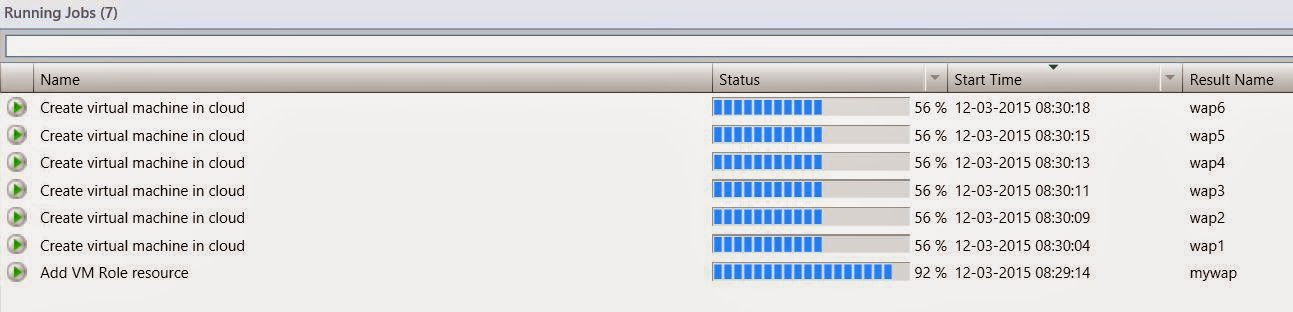
Here you can see some screenshots from a VM Role that will deploy Windows Azure Pack on 6 stand-alone VMs, combining DSC and SMA.


In an upcoming blog post, we will start to have a look at the actual code being used, the challenges and workarounds.


I hope that this blog post showed you some interesting things about application modeling with VM Roles, SMA and DSC, and that the times are a-changing compared to what we used to do in this space.

Monday, March 2, 2015

DSC with Azure and Azure Pack

Every now and then, it comes a time when I really need to ramp up on certain things.
It can be a new technology, a new product, or a new way of doing things.

This kind of journey is never easy, and I am that kind of person who doesn’t stop before I have a certain level of satisfaction. I expect a lot from myself and have a crazy self-discipline.

Starting early this year, I went deep into DSC to learn more about something that will be impossible to avoid in the next couple of months.

Before continuing, I just want you to know that this will not be yet another blog post that explains the importance of Powershell, which you need to learn ASAP or else you will "flip burgers in the future".

A result of have working with Azure Pack and Azure for the last years has made me much more creative.
Instead of having our out-of-the-box products where we were limited by the actions provided by the GUI, we can now easily create our own custom solutions where integrating several APIs, modules and so on to create new opportunities for our business.

Let us stop for a second on Azure. Microsoft Azure.
We have been talking about the Cloud OS and cloud consistency for over a year now and we should all be very familiar with MS vision and strategy around this topic.
Especially “Mobile first, Cloud first” will give us a hint that whatever comes will appear in Microsoft Azure first.

In the context of DSC, we can see that we can leverage some Azure VM Extensions and Features in our IaaS VMs today.
And that is really the background of this blog post.

Microsoft Azure provides us with several VM Extensions, either directly by Microsoft or some third-parties to enable security, runtime, debugging, management and other features that will boost your productivity working with IaaS VMs in Azure.

When you deploy a virtual machine in the Azure portal, you can decide whether or not the VM Extension should be enabled.

We have several extensions available, all depending on what we are trying to achieve.
The extensions I find most interesting belongs to the category of “Deployment and Configuration Management”.

First, let us talk about a VM extension for “MSEnterpriseApplication”.
Using this Extension, we will effectively implements features that supports VM Roles resource extensions, the same we can leverage on-premises with Azure Pack and Service Provider Foundation.
To add this extension, the VM must already exist in Azure and have the Azure Guest Agent pre-installed.

Running the following cmdlet using the Azure module gives us more details about the extension


With this extension enabled in the VM, we can use the VM Role Authoring tool to author our resource extension (that is the package that we normally import to VMM which contains the application payload). The latest version let us deploy directly to Azure.
If you rather want to use Powershell, you should view the Powershell functionality of the tool and save only the portion of the script that assigns a value to $plainSettings in a text file.

From here, you can store the text file in a variable ($plainSettings) and update your VM with the following cmdlet:

$VM = Set-AzureVMExtension –ExtensionName “MSEnterpriseApplication” –Publisher “Microsoft.SystemCenter” –Version “1.0” –PrivateConfiguration $plainSettings –VM $vmcontext.VM

Next, update your VM directly using the following cmdlet:

Update-AzureVM –ServiceName “ServiceName” –VM $VM –Name “VMName”

So, given the fact that we now have a single tool where we can author and deploy our resource extensions (application payload) to IaaS VMs in both WAP and Azure is good news, however, it is not idempotent.

This is where Desired State Configuration comes into the picture.
Been built on the Common Information Model (CIM) and uses Windows Remote Management (WinRM) as the communication mechanism, DSC is like putting steroids into your Powershell scripts.

I know I will get a lot of Powershell experts on my neck here, but that is at least one way to visualize what DSC is.
Let us say you create a script, deploy it to a node and then you are done.
If someone makes any changes to that configuration afterwards, the Powershell script would not care nor notice.
A Desired State Configuration can ensure that there won’t be any configuration drift and apply and monitor (for example) the configuration.
This is handled by the Local Configuration Manager (LCM) which you can consider as an “agent”, although it is not an agent per definition.

So, looking at the capabilities of DSC, we can quickly understand how important this will be for any in-guest management solution moving forward.

The requirement of using Azure Powershell DSC VM extension is that you must have Azure Powershell module installed. The DSC extension handler has a dependency on Windows Management Framework (WMF) version 5 – which is currently in preview and only supported by 2012 R2. WMF 5.0 will automatically be installed in your IaaS VM as a Windows Update once enabled, and require a reboot.

The following cmdlets are specific to DSC:

Publish-AzureVMDscConfiguration – will upload a DSC script to Azure blob storage, that later will be applied to your IaaS VMs using the Set-AzureVMDscExtension cmdlet

Get-AzureVMDscExtension – Gets the settings of the DSC extension on a particular VM
Remove-AzureVMDscExtension – Will remove the DSC extension from a VM

Set-AzureVMDscExtension – Configures the DSC extension on a VM


Here’s a very easy example on how to apply a DSC script to your VM in Azure, assuming you have the script already created.

Publish-AzureVMDscConfiguration –ConfigurationPath “c:\folder\DSCscript.ps1”

That will create a ZIP package which will be uploaded to a blob storage in Azure.

Next, we will add the config to the VM (which we assume is already stored in the variable named $VM ) )

$VM = Set-AzureVMDscExtension –VM $VM –ConfigurationArchive “DSCscript.ps1.zip” –ConfigurationName “DSCscript”

Once this cmdlet is executed, the following will happen within the VM:

1)      WMF 5.0 is downloaded and installed (the latest version) on the server
2)      The extension handler looks in the specified Azure container (which is defined when you connect with your subscription) for the .zip file
3)      Then the archive is unpacked and any dependent modules are moved into the PS Module path and runs the specified configuration function

Adding that this will also accept parameters gives you an understanding of how flexible, dynamic and powerful the DSC VM Extension will be.

Now, this was all about Microsoft Azure.
What about the things that are taking place in Azure Pack?

I briefly mentioned the VM Role Authoring Tool in this blog post which will be playing an important role in this setting.
The research I have been doing this year isn’t easy to put within a single blog post, especially not if I should describe all the errors and mistakes I have done as part of this journey J

I have been trying to simulate the Azure experience in Windows Azure Pack, but unfortunately, that is an impossible challenge as we don’t have the same possibilities when it comes to the interaction through the API. I am only able to achieve some of the good parts, but that again will qualify for some blog posts in the near future.

Before you start thinking “no, it is not that hard to simulate the exact experience”, I would like to remind you about that everything I do in this context, will always be using Network Virtualization with NVGRE, so there is no data-channel from the datacenter into the tenant environment what so ever.

If you think this is interesting, to learn more about DSC with Azure and Azure Pack, I have to point out the spectacular blog post series by Ben Gelens, where he has done a very good job explaining the complete setup of an entire DSC environment (using Pull) including the authoring of the required VM Role.


I will focus on the Push method in my examples, given the fact that the tenants are isolated and should be able to perform certain actions through self-service.

See you soon!