Showing posts with label Cloud OS. Show all posts

Monday, February 23, 2015

When your WAPack tenants are using VLANs instead of SDN

When your tenants are using VLANs instead of SDN

Ever since the release of Windows Azure Pack, I’ve been a strong believer of software-defined datacenters powered by Microsoft technologies. Especially the story around NVGRE has been interesting and something that Windows Server, System Center and Azure Pack are really embracing.

If you want to learn and read more about NVGRE in this context, I recommend having a look at our whitepaper: https://gallery.technet.microsoft.com/Hybrid-Cloud-with-NVGRE-aa6e1e9a

Also, if you want to learn how to design a scalable management stamp and turn SCVMM into a fabric controller for your multi-tenant cloud, where NVGRE is essential, have a look at this session: http://channel9.msdn.com/Events/TechEd/Europe/2014/CDP-B327

The objective of this blog post is to:

·        Show how you should design VMM to deliver – and use dedicated VLANs to your tenants
·        Show how to structure and design your hosting plans in Azure
·        Customize the plan settings to avoid confusion

How to design VMM to deliver – and use dedicated VLANs to your tenants

Designing and implementing a solid networking structure in VMM can be quite a challenging task.
We normally see that during setup and installation of VMM, people don’t have all the information they need. As a result, they have already started to deploy a couple of hosts before they are actually paying attention to:
1)      Host groups
2)      Logical networks
3)      Storage classifications
Needless to say, it is very difficult to make changes to this afterwards when you have several objects in VMM with dependencies and deep relationship.

So let us just assume that we are able to follow the guidelines and pattern I’ve been using in this script:

The fabric controller script will create host groups based on physical locations with child host groups that contains different functions.
For all the logical networks in that script, I am using “one connected network” as the network type.


This will create a 1:Many mapping of the VM network to each logical network and simplify scalability and management.

For the VLANs networks though, I will not use the network type of “one connected network”, but rather use “VLAN-based independent networks”.

This will effectively let me create a 1:1 mapping of a VM network to a specific VLAN/subnet within this logical network.

The following screenshot shows the mapping and the design in our fabric.


Now the big question: why VLAN-based independent network with a 1:1 mapping of VM network and VLAN?

As I will show you really soon, the type of logical network we use for our tenant VLANs gives us more flexibility due to isolation.

When we are adding the newly created logical network to a VMM Cloud, we simply have to select the entire logical network.
But when we are creating Hosting Plans in Azure Pack admin portal/API, we can now select the single and preferred VM Network (based on VLAN) for our tenants.

The following screenshot from VMM shows our Cloud that is using both the Cloud Network (PA network space for NVGRE) and Tenants VLAN.
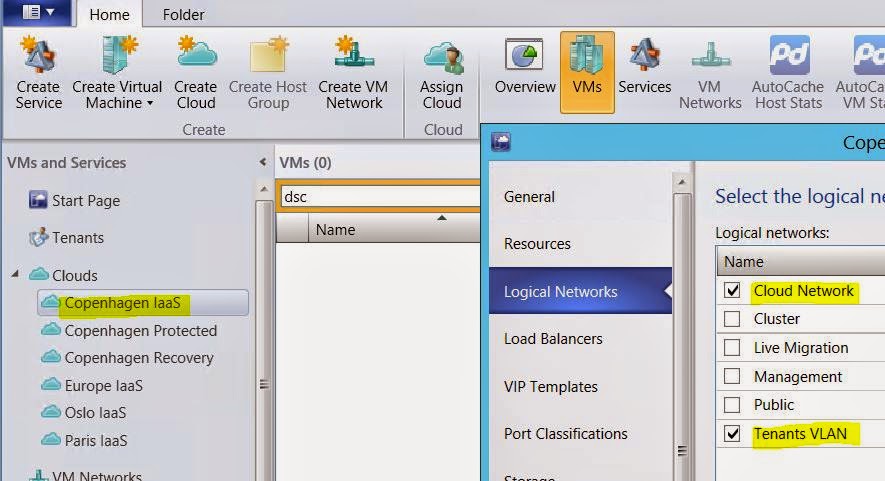


So once we have the logical network enabled at the cloud level in VMM, we can move into the Azure Pack section of this blog post.

Azure Pack is multi-tenant by definition and let you – together with VMM and the VM Cloud resource provider, scale and modify the environment to fit your needs.

When using NVGRE as the foundation for our tenants, we are able to use Azure Pack “out of the box” and have a single hosting plan – based on the VMM Cloud where we added our logical network for NVGRE, and tenants can create and manage their own software-defined networks. For this, we only need a single hosting plan as every tenant is isolated on their own virtualized network.
Of course – there might be other valid reasons to have different hosting plans, such as SLA’s, VM Roles and other service offerings. But for NVGRE, everyone can live in the same plan.

This changes once you are using VLANs. If you have a dedicated VLAN per customer, you must add the dedicated VLAN to the hosting plan in Azure Pack. This will effectively force you to create a hosting plan per tenant, so that they are not able to see/share the same VLAN configuration.

The following architecture shows how this scales.


In the hosting plan in Azure Pack, you simply add the dedicated VLAN to the plan and it will be available once the tenant subscribe to this subscription.


Bonus info:

With the update rollup 5 of Azure Pack, we have now a new setting that simplifies the life for all the VLAN tenants out there!

I’ve always said that “if you give people too much information, they’ll ask too many questions”.
It seems like the Azure Pack product group agree on this, and we have now a new setting at the plan level in WAP that says “disable built-in network extension for tenants”.


So let us see how this looks like in the tenant portal when we are accessing a hosting plan that:

a)      Provides VM Clouds
b)      Has the option “disable built-in network extension for tenants” enabled


This will ease on the confusion for these tenants, as they were not able to manage any network artefacts in Azure Pack when VLAN was used. However, they will of course be able to deploy virtual machines/roles into the VLAN(s) that are available in their hosting plan.


Monday, November 17, 2014

Speaking at Campus Days in Copenhagen

The last week in November, I will present several sessions at "Campus Days" in Copenhagen in Denmark.

http://blogs.technet.com/b/rasmush/archive/2014/11/16/byg-din-egen-campus-days-agenda-via-channel-9.aspx

Together with my good friend, Flemming Riis, we will show different sides of datacenter and cloud management using a real world fabric in order to hit the high notes together with the audience.

What's cool with this conference is that all sessions will be available on Channel 9 afterwards.

https://channel9.msdn.com/Events/Speakers/kristian-nese

I will have two presentations:

Mastering Networking in VMM (level 400)


A very interesting topic (to say the least) where I will cover the design and implementation of networking in VMM.
This should give you a complete overview of how to implement fabric networks, software-defined networking (NVGRE with NVGRE gateways) and lay the foundation for automation with Windows Azure Pack. If you have any questions related to networking in VMM, this is your chance to speak up, ask questions and join the interactive session.

Virtual Machine Manager (level 300)

A bit vague title, but many interesting things can be place underneath the umbrella of Virtual Machine Manager. This can be your day-to-day management tool, or your fabric controller that will be harnessed by Windows Azure Pack.
Here we will touch several aspects such as compute, networking and storage management, as well as service templates, cloud and much more.

I also recommend you to join Dr. Riis sessions, which you later will find online here:

https://channel9.msdn.com/Events/Microsoft-Campus-Days/Microsoft-Campus-Days-2014?sort=sequential&direction=desc&term=&s=flemming-riis


-kn

Monday, September 29, 2014

Deploying Web Site Clouds for Windows Azure Pack

On this blog, you have mainly found (useful?) information around Hyper-V, VMM and Azure Pack when it comes to the private cloud area.
However, Azure Pack gives us a lot more than “just” the VM Cloud Resource Provider, that is the holy grail of Infrastructure as a Service offering in your private cloud.

I have attempted to cover the broader aspect of Azure Pack on this blog, like walking through the different portals, APIs and much more, especially related to the backend VM Cloud services.

Recently, I wrote about “Deploying Service Bus for Windows Azure Pack” - http://kristiannese.blogspot.no/2014/09/deploying-service-bus-for-windows-azure.html that shows the consistency related to PaaS between Microsoft Azure in the public cloud, and Azure Pack in the private cloud.

This blog post – which is focusing on the Web Site Cloud does also falls under the PaaS umbrella in Azure Pack.

Without going into the repeating story around “one consistent platform” and all of that, I assume you know this already, but as an introduction to Web Site Clouds in WAP, we can say the following:

The Web Site Clouds enables an on-premises, high-density, multi-tenant web hosting service for service providers and enterprise IT. The web sites provides an experience similar to Microsoft Azure Web Sites. It is scalable, shared, and secure web hosting platform that supports both template web applications and a broad range of programming languages like ASP.NET, PHP and Node.js.
In addition to a web site service, it includes a self-service management portal (tenant portal), uses both SQL and MySQL database servers, integrates with popular source control systems, and offers a customizable web application gallery of popular open source web applications.

Web Site Cloud

The Web Site Cloud consists of at least 6 server roles.

·         Controller – Provisions and manage the other web site roles. This is the first role you install and run the Web Site Cloud setup on
·         Management Server – This server exposes a REST endpoint that handles management traffic to the WAP Web Site Management API, and you connect the service management portal to this endpoint
·         Front End – Accepts web requests from clients, routes requests to web workers, and return web worker worker responses to clients. Front End servers are responsible for load balancing and SSL termination
·         Web Worker – These are web servers that process client web requests. Web workers are either shared or reserved to provide differentiated levels of service to customers. Reserved workers are categorized into small, medium and large sizes.
·         File Server – Provides file services for hosting web site content. The file server houses all of the application files for every web site that runds on the web site cloud.
·         Publisher – Provides content publishing to the web site farm for FTP clients, Visual Studio and WebMatrix through the Web Deploy and FTP protocols

And as everything else, a SQL server is required for the runtime database.
The roles are separated from, and in addition to, the servers that form the (express or distributed) installation of the service management API (Portals and APIs).


Before you start to install the Web Site Cloud, you must deploy and prepare some VM’s.

Obviously everyone is using VMM today, so here’s a short script that will go ahead and create 6 VMs to be used for the Web Site Cloud in your private cloud infrastructure:

$VMNames =@(1..5)
$Template = Get-SCVMTemplate -VMMServer vmm01 -ID "1ee6ba94-b5fc-49f1-8364-a3d1b2da3f40" | where {$_.Name -eq "GEN2 Template"}
Foreach ($VM in $VMNames)
{
$VM = "webroleblog"+$VM


New-SCVirtualMachine -Name $vm -VMTemplate $template -VMHost "hv03" -Path "c:\clusterstorage\csv01" -HighlyAvailable $true -RunAsynchronously

}


Once this is done, you can start by logging into the controller VM where you will install the Web Site Cloud to deploy and configure the other core roles for this resource provider.

Note: Although it is not a requirement I have found officially, I have experienced some issues if .NET 3.5 is not enabled within the OS’s before we start on this process. Through the Web Site Cloud installer, we will download, install and enable many web server features on each guest through an agent. This one seems to fail randomly if .NET 3.5 is left out)

On the controller, download and install Web Platform Installer version 5.0

Once this is done, start Web Platform installer and search for Web Site.
Add “Windows Azure Pack: Websites V2 Update 3” and install it on your server.


Post the installation, you will be prompted by the well-known configuration page of Azure Pack that let you connect to the SQL server, create the database, file server settings and a lot more.

The following screen shots will give you an understanding of what needs to be configured.


After the setup, we logon to our admin portal to add and configure the rest of the Web Site Cloud resource provider.

Click on Web Site Cloud and connect to your newly created environment.
Select a display name, connect to the management server (https://nameofmanagementVM), and type the credentials you specified during the setup that has access to the REST endpoint.


After the web site cloud is added, you can drill into the configuration and click on ‘Roles’.
This is where you will add the additional and required web site roles you need in order to deliver web sites to your customers.


We have already the following in place:

-          Controller
-          Management
-          File server

What we need to add now, is:

-          Publisher
-          Front End
-          Worker

You simply type the DNS or the IP address of the specific server(s) you want to add, and then Azure Pack will deploy and configure these roles for you, through the controller.

Note: The Web Site Cloud has a default domain that you specify during the setup. In our example, we are using paas.systemcenter365.com  - which mean that every website that gets deployed, will have a suffix of website.paas.systemcenter365.com
In order for this to work, you must also create some host records for the following roles:

·         Web Deploy DNS: publish.paas.systemcenter365.com
·         FTP Deploy DNS: ftp.paas.systemcenter365.com
·         Front End: *.paas.systemcenter365.com

Also note that you are able to perform lifecycle management of your web site roles directly from the management portal:


Once the web site cloud is configured with the default settings, you can go ahead and add the web site cloud to an existing Hosting Plan.

You can configure the Web Site offering by clicking on the service within the plan, and edit the existing values. We will leave this alone for now, and head over to the tenant portal to see the interaction.


Now we have the Web Sites available in the tenant portal, since this tenant is subscribing to a hosting plan that contains this offering.
If we click on new, we can choose between quick create, custom create and from gallery.


Once the web site is deployed (regardless of the options listed), we can perform several operations post the deployment from the tenant portal.


From a developer perspective, it is very interesting to see that you can download the publish profile, so that you can leverage TFS to deploy your applications. This is a solid value add-on, in addition to the already exposed tenant public API (for more info, see:  http://kristiannese.blogspot.no/2014/06/azure-pack-working-with-tenant-public.html )

What I like the most about the web site cloud is the grade of integration with the other PaaS offerings in Azure Pack, just as you would find in Microsoft Azure.
Depending on the solution and application you create, you can link with SQL, MySQL and Service Bus which is basically everything you need in order to fulfill the PaaS solution you are working on.

Hopefully this gave you an overview of the Web Site Cloud in WAP.


Monday, September 1, 2014

Presenting at TechEd Barcelona 2014 - Windows Azure Pack

Hi everyone.
I just want to inform you that I will be presenting at TechEd in Barcelona in October.
This is truly an honor and I am really looking forward to meet my friends from all around the globe.

I have one session that is titled “Planning and Designing Management Stamps for Windows Azure Pack”.


This session will indeed focus on the underlying stamp that we turn into a resource provider for the VM Cloud in Azure Pack.
Throughout the entire session, I will share best practices, things you would like to know and also things you should already know.
This is where you will get the inside tips on how to design and build a management stamp to serve cloud computing with WAP, designed to scale and be fault tolerant.
In essence, I will be explaining and demonstrating my bread and butter and what I have done the last 12 months.

I really hope to see you there and if you have any questions upfront and would like to have answered during the session, please let me know.


Wednesday, August 20, 2014

10.000 Downloads!

10.000 downloads!

WOW!

Our whitepaper “Hybrid Cloud with NVGRE (Cloud OS)” has reached an unbelievable milestone today.
The paper has been downloaded more than 10.000 times!

I am truly humbled and honored to know that our effort by writing this whitepaper has been greatly appreciated by the community worldwide.

The Story

The initial idea back in October in 2013 was to create a comprehensive guide that would help people to implement Network Virtualization (NVGRE) using System Center Virtual Machine Manager 2012 R2 and Hyper-V in Windows Server 2012 R2.
I started the job together with Flemming Riis – which had this real-world fabric available for us to test, crash and build. Learn, apply, and repeat.

The first release was based on the Preview bits of the Cloud OS and we decided to update the content with the RTM builds as soon as possible; in order to address many questions we knew would arise in the different TechNet forums.

Our reviewers was Daniel Neumann and Stanislav Zhelyazkov.

We had now a new version.

In addition, we added a comprehensive “FAQ” chapter to the paper based on experience from early adoption, TechNet forums and feedback.
This is when we decided that we had to “hire” Stanislav Zhelyazkov. He provided us with unique details that gave a much better quality to the whitepaper, and especially around this section.

This was the third version.

Our forth version added Windows Azure Pack to the paper where we ended up putting NVGRE into context. We highlighted how to leverage the multi-tenant IaaS platform we had been building with VMM, with the service management API in Azure Pack. This was a big update, which included several other elements such as gallery items, remote console and much more.

Our fifth version is where we added a “FAQ” chapter for the Azure Pack part, and hence the “hiring” of Marc Van Eijk, which gave us a deeper insight and a better perspective based on his experience as well, and this is still the current version that we know are helping people on a day-to-day basis.

We know that this whitepaper has been greatly appreciated by Microsoft Support and is widely used by their customers when they are facing challenges regarding these technologies. That is truly a confirmation that we really did something useful this time J

My promise to you:

Instead of putting too much effort into books with all those heavy processes, I will instead continue to write fresh, up-to-date and deep technical whitepapers that can make your life easier.
That means that you can expect more to come from this side as we are seeing new releases of this stack.

I also know that my team are with me and on behalf of them; I can only say that we are very grateful and appreciate all the feedback we have received on our way.

A big thank you from me, Flemming, Stanislav, Daniel and Marc!

Monday, August 18, 2014

VM Cloud is missing in Windows Azure Pack

Recently, I’ve encountered a bug when working with WAP and VM Cloud as the resource provider.

Symptoms

You have connected the service management API to your SPF endpoint and added a VMM management stamp together with a Remote Desktop Gateway.

If you decide to change the FQDN of the Remote Desktop Gateway registered with your VMM management stamp, you will end with a blank VM Cloud in the admin portal.
The connection to the SPF endpoint is still present, but the VMM management stamp with its cloud is missing.


This causes also the VMs and the virtual network for the tenants to appear as missing in the tenant portal.

On the SPF server you will find the following event logged for ManagementODataServices:


On the server where the admin API is installed, you will find the following in the event viewer:


When you make changes to the FQDN of the Remote Desktop Gateway in WAP, you will have another SCSPFServer record present in SPF together with a SCSPFSetting that has the same ID as the previous records.

As you can see from the screenshot below, we have now two records of the ServerType “RDGateway”.


If we dig deeper, the following screenshot shows that we have two entries with the same ID, both registered to the VMM management stamp.


In short, the VMM management stamp is registered again, which generates a duplicate ID that results in this behavior.


Resolution

In order to clean up, we have to work directly on the SPF server using the SPFAdmin module with PowerShell.

Note: when doing this correctly, you will not delete, loose or cause any harm to your production environment so pay attention.

1.       Log on to your SPF server and import the SPFAdmin module


2.       Run the following cmdlets to identify and remove your RDGateway servers! In our case, we have two records and have to remove both of them before we later add the RDGateway we want.
The reason for that is that because when you try to add the RDGateway in WAP afterwards, you will see that this column is empty although it exist in SPF. If you try to add the RDGateway again, you will end up in the exact same situation. Therefore we must remove both servers in SPF.


3.       Remove the duplicate SCSpfSetting with the following cmdlets. The SCSpfSetting on the top is the setting you want to remove with the duplicate ID.


4.       Next, we want to register the RDGateway directly to our stamp with SPF to avoid creating duplicate ID's.


Once this is done, you can perform a refresh in both the admin portal and the tenant portal, and your VMM management stamp should again be present.
Also edit the connection to verify that the RDGW is registered with the correct values.


 Please note: If you register your VM Cloud resource provider in WAP with all the settings at once, you will not run into this issue. It's only if you decide to add the RDGateway afterwards, or are making changes to the existing one.


Thursday, January 23, 2014

Troubleshooting Windows Azure Pack

I have now some really dirty fingers after I've been playing around with Windows Azure Pack for the last weeks.
Together with a fellow MVP, Marc van Eijk, we have done some huge investment in Windows Azure Pack to detect pitfalls and gotchas.

Windows Azure Pack is key when you would like to offer sophisticated services to your tenants, and therefore is very critical in this context. In order to understand how everything is working together, we have been cracking, destroying and fighting with this beast to be better prepared if anything happens in a real world deployment.

The findings so far have been very valuable and we are happy share it with you during some blog posts in the near future.

Note: In the MVP community, we have been discussing several stuff with the product groups around our findings. As a result of this, MS has now published a "Windows Azure Troubleshooting" section at TechNet which can be found here http://technet.microsoft.com/en-us/library/dn554311.aspx


Stay tuned :-)