Showing posts with label Beta. Show all posts

Friday, December 7, 2012

Microsoft Service Template Explorer Beta Program


Microsoft Service Templates for SCVMM 2012

If you are into System Center and want to stay ahead, please join the Beta program for Microsoft Service Templates. You can join the program with this link: https://connect.microsoft.com/site14/MicrosoftCloudPack

So what’s the Microsoft Service Template Explorer Beta program?

To get you started, get some insight to the service concept in System Center Virtual Machine Manager 2012 - http://kristiannese.blogspot.no/2012/02/getting-started-with-services-in-vmm.html

This new cool concepts let you deploy scalable, multi-tier applications in your private cloud.
The Service Template Explorer Beta program is an add-in to your VMM server, so that you can explore, download and import service templates directly to your VMM infrastructure, and leverage pre-configured templates from Corp.

Why do we need this?

If you have been exploring the massive service concept, you have probably seen that it may be complex to deploy all the wide diversity of server roles, applications, and to select the proper deployment order and so on. The service templates from Corp is already configured so that you can deploy them into your environment, ready to be used.

Currently available in the Service Template Explorer:
 
·         Windows Server 2012 with Active Directory Domain Services

Since Hyper-V and System Center now supports network virtualization, you would probably think this is great. Customers, application owners etc, can now deploy their own domain controllers through service deployment in an isolated network. Maybe they have an application that requires domain access, or just simply wants to deploy an infrastructure in a quickly and reliable manner. Oh, and remember. If you touch some of the advanced OS configuration in a VM template, like server roles and features, the template will be deployed as a Service instead of a virtual machine – or else these options would be ignored during deployment.
 
·         Windows Server 2012 Domain Name System (DNS)

A service template ready to serve the need for a DNS infrastructure with all the required roles and features enabled for install.

·         Windows Server 2012 Dynamic Host Configuration Protocol (DHCP)

This service template will include the DHCP role, but if your VMM server will manage the IP addresses and configuration in your virtual environment – also for your VM networks, you might leave this one alone.

·         Windows Server 2012 File Services

Personally, I find this template quite useful in my demo and lab environment, where I can quickly show off the SMB3.0 enhancements to simulate continuously availability and virtual machines over a network share. A lot of other scenarios will require file services too, so this is a good template.

·         Windows Server 2012 Internet Information Services

A lot has been done with IIS in Windows Server 2012, and this template will let you benefit from it all. If you are deploying traditional service templates – which has native support for Server App-V, web applications and dacpacs, this one is very handy.

Getting started with Service Template Explorer Beta

1.       Install the .msi file to a preferred destination.

2.       Go to settings in your VMM console and click ‘Import Console add-in’

3.       Navigate to where you installed the .msi file

4.       Once the import has completed successfully, go to ‘VMs and Services’ workspace in VMM.

5.       Click on ‘Service Template Explorer’

6.       You’ll be presented to the available templates from Corp and you can download these bits to your library.


Once this is completed, you can import the templates into your VMM library server(s) and map them to your resources (networks, VHDs).

The screenshot below is an example of a service deployment in my environment, using the Active Directory service template. As you can see, the service is installed with AD DS and is ready to be promoted as a Domain Controller.

Tuesday, December 4, 2012

Using SMB3.0 in your Private Cloud Fabric

Integrating SMB3.0 in your private cloud fabric

This blog post is about how you can integrate and take advantage of SMB3.0 in Windows Server 2012 with System Center 2012 SP1 Virtual Machine Manager.


Now, let’s take a look on how you can add your SMB3.0 shares from your file server and scale-out file server to the storage space in fabric.

Virtual Machine Manager provides you with a single-pane-of-glass view into your datacenter infrastructure.

All the physical components remain in the Fabric workspace. Here you can manage your virtualization hosts and the other server roles to support their life cycle, and you can manage your datacenter network and create a network models which helps you to administer and manage access, connectivity and capability for your hosts, clusters, VMs and services. And last but not least, if you have a storage solution that either support SMB3.0, SMI-S or SMP, you can add that too.

In other words, fabric is equal to infrastructure: Compute, networking and storage.

Other terms to describe this is ‘stamps’ and ‘scale units’.

How to add your file servers to System Center 2012 SP1 Virtual Machine Manager

1.       Log on to your VMM management server with sufficient permissions to have some fun in the fabric


2.       Navigate to Fabric, click ‘Add resources’ and ‘Storage Devices’
 

3.       Select ‘Add a Windows-based file server as managed storage device’
 

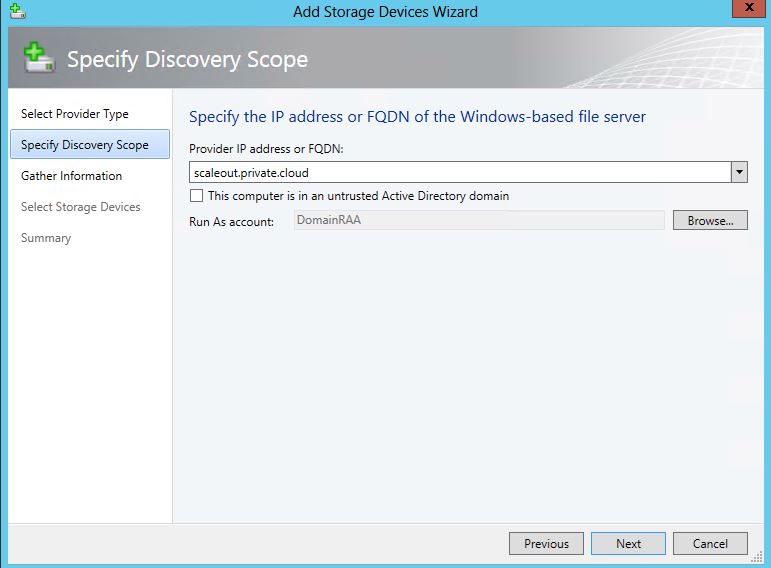
4.       Enter the IP address or FQDN for the file server and choose a run as account. Note: if you are adding a scale-out file server which is a cluster role, type in the FQDN of the scale-out role since the role itself is not bound to a specify IP, due to SMB multichannel

5.       Select the file shares to place under management. In my example, this is just an empty scale-out file server with currently no shares created
 

6.       Click finish and read through the summary. You have also the option to check the powershell script that’s running under the hood. Once completed, you will have your file server available in the fabric


How to create shares on your file server in System Center 2012 SP1 Virtual Machine Manager


1.       In fabric, click on your file server in the storage pane and click ‘Create File Share’

2.       Assign a name, description and the local path. If this Is on a scale-out file server cluster, the typical path would be something similar to this: c:\ClusterStorage\Volume1\share\nameofyourshare. Mark ‘Continuously available’ if this is a scale-out file server cluster and click ‘Add’

3.       You’ll find your share added to your file server in VMM once this has completed
 

4.       Right click on your newly created share, select properties, and mark the ‘Managed by VMM’ checkbox.


The next part is to make the share available for your hosts and clusters. Please read the following blog post for a walkthrough related to this configuration: http://kristiannese.blogspot.no/2012/07/introducing-smb30-with-virtual-machine.html

So what does this gives?

If you have been working with SMB3.0 for server applications in Windows Server 2012 (read Hyper-V) then you are probably familiar with the required steps for this to work as far as the permissions concerns.

You must enable constrained delegation for Kerberos only in Active Directory, and add the following objects/accounts with full permissions to the file shares


·         Your Hyper-V computers account

·         The Cluster Name Object if the share should be accessible for your Hyper-V Cluster

·         Hyper-V administrator(s)

VMM does this for you, so you don’t have to stress with it.

When you add a Hyper-V host, VMM will use those credentials (RunAs accounts) when assigning permissions to the shares created on your file servers. This is a management domain account (yes, SMB3.0 in this context will require an Active Directory domain to work anyhow).

So when you are adding a new host to a cluster, for example, VMM will update the permissions on all shares registered to the cluster during the refresh process.

Good luck with your SMB3.0 adoption in your fabric, and feel free to comment on this post if you have any questions, issues or just want to connect.

Monday, July 9, 2012

Virtual Machine Servicing Tool 2012 Beta

Maybe you have missed the servicing tool that you used to rely on in the Virtual Machine Manager 2008 R2-days?

Well, I am happy to announce that it`s preparing for a comeback.
This tool is designed to work with System Center 2012 - Virtual Machine Manager.

When you have played around with Windows Server 2012, I you noticed the option to install roles and features on your offline VMs VHDs as well? Guess what, the Servicing Tool will take advantage of that, and leverage this new option.

You can now service the following:

  • Offline virtual machines in a SCVMM library.
  • Stopped and saved state virtual machines on a host.
  • Virtual machine templates.
  • Offline virtual hard disks in a SCVMM library by injecting update packages.

  • To read more and download the Beta, visit the Microsoft System Center - VMM blog.

    http://blogs.technet.com/b/scvmm/archive/2012/07/05/virtual-machine-servicing-tool-2012-beta.aspx