Monday, November 19, 2012

Windows network virtualization is not enabled on a host NIC available for placement


“Windows network virtualization is not enabled on a host NIC available for placement”

1. You have created a logical network in the Fabric workspace in VMM.

2. Then, you have created a VM Network, and tries to deploy a VM or/and a Service to your cloud or host group, associated with this network.

You’ll get the error mentioned above, during the intelligent placement step in the wizard.

Resolution:
Log on to your hosts/clusters where you can’t perform the deployment and enable the “Windows Network Virtualization Filter Driver” option on the NIC used for the virtual switch.

Refresh the hosts/clusters in VMM and retry the operation.

Wednesday, November 14, 2012

Clustered Shared Volumes (2.0) in Windows Server 2012

Clustered Shared Volumes was first introduced in Windows Server 2008 R2, and was almost as popular as sliced bread by the time. A great enhancement, and it was solely meant for Hyper-V virtual machines.

Instead of using a dedicated LUN for each VM (so that you could migrate them between cluster nodes without taking down the other VMs on the same LUN) as in Windows Server 2008, you had now the possibility to store multiple VMs on the same LUN by converting it to CSV.

CSV is a distributed file access solution that let multiple nodes in a cluster to access the same file system simultaneously.

This means that many VMs can share the same volume, while you can failover, live migrate and move VMs without affecting the other virtual machines. This leads to better utilization of your storage since you don’t have to place VMs on separate disks, and the CSV’s are not depending in disk letters so you can scale this configuration out, if you’d like.

What’s the latest and greatest related to CSV 2.0:


·         Windows Server 2012 has brought some changes to the architecture, so there’s now a new NTFS compatible file system, which is called CSVFS. This means that applications running on a CSV are able to discover this, and leverage this. But still, the underlying file system is NTFS.


·         BitLocker Support is added to the list, which means you can secure your CSVs on a remote location. The Cluster Name Object is used as the identity to decryption and you should include this in every cluster deployment you are doing, because the performance penalty are less than 1%.


·         Direct I/O for data access which gives enhancements for virtual machine creation and copy operations.


·         Support for other roles than Virtual Machines. There’s an entirely new story around SMB in Windows Server 2012, and CSV is also affected by this. You can now put a SMB file share on top of your CSVs, which makes it easier to scale out your cluster storage, to share a single CSV among several clusters, where they will access their shares instead of volumes. Just a reminder: You can run Hyper-V virtual machines from a SMB file share in Windows Server 2012. This requires that both the server and the client is using SMB 3.0.


·         The marriage to Active Directory has come to an end. External authentication dependencies, which you would run into if you started your cluster without an available AD is now removed. This gives us an easier setup of clusters, with less trouble and dependencies.


·         File backup by supporting requestors that’s running Windows Server 2008 R2 or 2012. You can use application consistent and crash consistent VSS snapshots.


·         SMB support with multichannel and direct. CSV traffic can now stream across multiple networks in the clusters and utilize the performance in your NICs that supports RDMA.


·         Integration with storage spaces (new in Windows Server 2012) so that you can leverage your cheap disks (just a bunch of disks, JBOD) in a cluster environment


·         Maintenance by scanning and repairing volumes with no downtime

 
Although there’s several enhancement for VM mobility in 2012, where you can move VMs without shared storage, there are still significant benefits by clustering your Hyper-V hosts.

Remember: No cluster = no high availability.


Sunday, November 11, 2012

Infrastructure Planning and Design

This is a quick heads up for some important guides that should be on every system integrators table.

The Infrastructure Planning and Design guides from Microsoft http://www.microsoft.com/en-us/download/details.aspx?id=732

The planning phase on a project is the most important one.
The reason for that, is that you must ensure what the customer actually want to do, and how to meet the requirements. Let’s take the System Center components for example.
Although you can ramble on and install Operations Manager on a single server, this is unlikely very clever to do.

Things to consider prior to deployment:

·         What infrastructure is in place prior to the deployment?

·         Do you have to purchase additional hardware components to meet the requirements?

·         Will this lead to some change management?

·         Who’s involved in this project?

·         Will it involve down time for some (or all) of the production?

·         ETA?

This is just a few points to mention in this context, but the list could go on and on and on.
Read the different guides that are related to the projects you’re working with, and make sure you have considered the most important pitfalls.
Statistically, 8 of 10 IT projects are failing beyond recognition. If you read through the Infrastructure Planning and Design guides, you should be one step closer to a successful project.

Thursday, November 8, 2012

Your datacenter - your business

This is just a blog post to remind you of something important.

Over the last year, I’ve been running around to organizations to teach them cloud computing, and to give them a view of what Microsoft’s cloud solutions can do to help them further in their transformation.
One of the questions I ask during my visit is if they know how many physical hosts they have running in their datacenter, as well as the amount of virtual machines.

Most of the time, they can’t provide the exact number. No big deal?

It depends.

If it’s a hoster or an ISV; they are probably deploying and decommissioning virtual machines on the fly, all day long. However, they should at least know how many hosts they are running to know if they have the required capacity to meet their internal requirements to do business.

This is a clear sign that the management tools they are using, doesn’t give them the big picture of how things are going.

When we dive deeper into their processes and architecture, it’s common to see that the communication between the different IT-departments isn’t the best of the best. It’s all a lack of solid management tools – and those different tools aren’t integrated at all.

I often have to ask them where they are today – and where they’re planning to go.

This will most often start the journey through System Center, including Windows Server 2012 (Hyper-V) and Windows Azure – for extension and rapid burst.

Based on experience and results of the work we have done, it’s easy to see how System Center – not only addressing the technical concerns and issues that the organizations may have at the time, but also brings better communications, workflows and better service delivery between the different departments. All from the Fabric and up to human resources, System Center deals with it.

And that brings us back to the topic.
To deal with cloud computing – no matter if it’s private, public or hybrid, you must understand your own organization. What you’re doing at the moment (health check of your environment etc) and where you’re going. Both short-term and long-term is important here.
Some will probably state that the cloud solutions from Microsoft is far too expensive, when just looking at the licenses. But that’s a sign that they haven’t been presented with the big picture of all the components. Remember, it will embrace every single thing in your organization.

I can guarantee that the ROI will put a smile on your face, and it will stay there.

Wednesday, October 24, 2012

SQL 2012 AlwaysOn + IP for Azure in Orchestrator 2012 SP1


Just a quick heads up for something interesting in this blog post.

1.       Learn how to configure SQL 2012 AlwaysOn for your VMM 2012 SP1 database


2.       Download and test the Integration Pack for Orchestrator 2012 SP1 that let you manage your virtual machines, services etc in Windows Azure.


Overview

​The Integration Pack for Windows Azure enables you to automate Windows Azure operations related to certificates, deployments, hosted services, storage, and virtual machines.

Feature Summary
The Integration Pack includes the following activities:

  • Azure Certificates- the Azure Certificates activity is used in a runbook to add, delete, and list management and service certificates
  • Azure Deployments- the Azure Deployments activity is used in a runbook to create, delete, get, and swap deployments, change deployment configurations, update deployment statuses, rollback an update or upgrade, get and change deployment operating systems, upgrade deployments, walk upgrade domains, and reboot and reimage role instances
  • Azure Cloud Services- the Azure Cloud Services activity is used in a runbook to create, delete, and get cloud services, check cloud service name availability, and create affinity groups
  • Azure Storage- The Azure Storage activity is used in a runbook to create, delete, update, and list storage accounts, get storage account properties, get and regenerate storage account keys, create, list, and delete containers, and put, copy, delete, list, snapshot, and download blobs
  • Azure Virtual Machine Disks- the Azure Virtual Machine Disks activity is used in a runbook to add, delete, update, and list virtual machine disks and virtual machine data disks
  • Azure Virtual Machine Images- the Azure Virtual Machine Images activity is used in a runbook to add, delete, update, and list virtual machine operating system images
  • Azure Virtual Machines- the Azure Virtual Machines activity is used in a runbook to create virtual machine deployments, download virtual machine remote desktop files, as well as get, delete, start, restart, shutdown, capture, and update virtual machine roles


Monday, October 22, 2012

Working with runbooks in Orchestrator


Working with runbooks

With the new kind of science, which you get from Orchestrator, people are often amazed when they see this engine in action for the first time.
It’s a standard reply to all questions related to Orchestrator, and that is ‘yes’. Your imagination is the limit.

In this blog post, I will show to simple runbooks that does something you might find boring and repetitive if you are working as a sysadmin today.

The first runbook will create a new user in my Active Directory domain, and enable the account.

The second will create a new virtual machine in my cloud.

Yes, as I said. Two very simple runbooks. Although you can create workflows that integrates all from hardware, software – and even human resources, it’s often best to start with small chunks to remove the typical tasks that you’re not paid for anyhow. You should be focusing on much more important tasks than these two, but that would be the next phase.

Background:

System Center 2012 has a component called Orchestrator. This is the glue in the System Center stack, orchestrating the most simple – and also the most complex tasks in your environment. The workflows that you create could be a combination of activities and scripts, running on your terms.

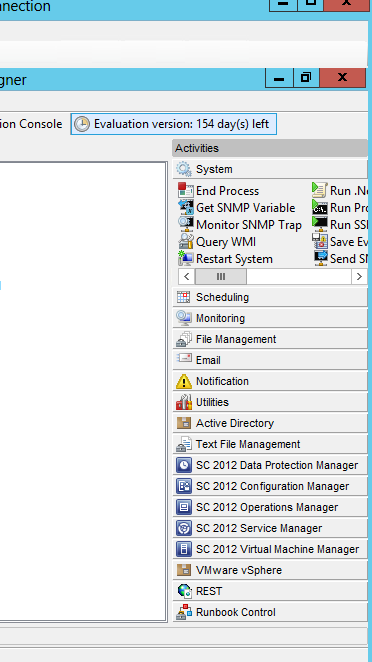
Orchestrator has a bunch of existing activities when you’re opening the runbook designer for the first time.

If you take a closer look at the picture, you will also find well-known Microsoft products and components as well as third parties. System Center 2012 has activities to each and every component, so that you can create extended functionality in your infrastructure, as well as automated tasks initiated by your users and customers, in conjunction with Service Manager’s self-service portal.


If you look closely, you can also see that I have imported an Integration Pack that integrates with VMware. But that’s another blog posts, and most likely it’s written by someone else.

Creating runbooks

Create a new Active Directory user

There are several ways to create runbooks. Some runbooks could be solely dedicated to system tasks, that runs either on a schedule, or is initiated by some system events and so on.

But if you want to create a runbook that should be presented to their users through some self-service mechanism, you would normally follow these steps:

1.       Initialize data

This activity will let you define parameters/inputs with different data types. For example, a user can specify user name, display name and other related information for a user object in Active Directory that will flow over the data bus to the next activity, which actually creates a new user based on the input in initialize data.

2.       Leveraging the activities from Active Directory Integration pack, will let you mix and match the most common tasks you would normally do manually. In this example, we will use the activity called Create User. The activity is connected to a domain controller in your environment. This is something you configure in the runbook designer itself, and also on each activity. The activities have several options related to them, and you can also add extras if you’d like. So the questions is: How can we get the data from the first activity and map them into the correct options in the next one?
 
In each option, you have the possibility to ‘subscribe’ on published data. Right click and click subscribe. This will let you map and address the data.  

3.       Enable the user is the last activity in this runbook. So once the user is created based on the input in the first activity, the account will be enabled.

Now, if you look at this runbook, you might think it’s simple, easy and not much of a hazzle to get things up and running.

However, I would like to stress that you should design your runbooks properly with some logging, alternative routes in case if an activity is failing and so on.

So let’s take a look at my second runbook.

Create a new virtual machine

We will start with the same task, initialize data. We want to combine this with a Service Offering in Service Manager, so that the users should be able to access this by themselves, with no need to access the actual management tools to perform this. (This is the beuty of self-service).

1.       Initialize data

I want my users to be able to create and deploy their virtual machines by themselves, without having the IT organization to interact each time. In addition, this must be as simple as possible, where the users have no idea of the underlying resources, or where it’s actually placed.

The only thing they should determine, is the name of the virtual machine – so that they can recognize it afterwards. 

2.       Create a VM from Template is the activity I will use. I have already create the sysprep’d VM, stored it in my library, and associated some profiles to make this magic happen.

3.       Start the Virtual Machine is the last activity, so they will be able to connect and access their resources once it’s comlpeted.

Again, a very simple runbook. But if you take a look at the data buses in this workflow, you can see I have differentiated them by using different colors. The blue ones are representing the data buses that went ok, and the red ones are related to errors.

To summarize, in case of an error during the process, the runbook will head over to the activity called ‘Send e-mail’ to notify some admins about what happen.

Hopefully, you got some ideas on how to get started with Orchestrator by now.

Use your imagination and try to start with the most boring tasks first thing first.

Next time, we’ll see how we can take this a step further with Service Manager.

Monday, October 8, 2012

System Center 2012 SP1 - Virtual Machine Manager - The Review


System Center 2012 SP1 – Virtual Machine Manager – The Review

When I was so honored to receive the MVP award in 2010, it was in the Virtual Machine Manager expertise. This component lays close to my passion for virtualization and cloud computing in general, and it’s a core component in Microsoft's cloud solutions.

I have been using Virtual Machine Manager since the 2008 version and watched the development with big enthusiasm. The launch of System Center 2012 was beyond impressive, and Service Pack 1 – that will support Windows Server 2012 (Hyper-V) will be even more stunning.

Virtual Machine Manager 2012 SP1 – what value does it bring to your business?

System Center 2012 SP1 – Virtual Machine Manager is the management layer for your infrastructure like virtualization hosts, storage, networking (pooled resources) so you can deliver cloud services to your business and customers. I believe that there’s no need to dive into all the features in Hyper-V in Windows Server 2012, because you have most likely heard a lot of them by now. The bottom line is that many organizations, independent of the size of their businesses, are looking towards Microsoft’s premium hypervisor in these days. All the known challenges and limitations from earlier versions are now addressed in this release. Multi-tenancy, VM mobility, optimization in the entire stack, and simplified management, licensing and disaster recovery to mention a few, will automatically give your ROI a solid burst.
Virtual Machine Manager is an abstraction layer above your infrastructure and you can manage those components completely from a single pane of glass.
Investments made in storage will let customers benefit from JBOD and commodity hardware in their environment by using file storage (SMB 3.0) as an alternative to block storage (iSCSI, FC) which is often associated with expensive SAN’s, switches and cables.
Virtual Machine Manager will leverage SMB and file shares (also scale-out file servers) and take care of the required configuration (no need to map permissions on individually shares and folders).
Of course, if you have invested in a SAN solution, you can leverage this from VMM as well with the support for SMI-S protocol.

To summarize the value of VMM for your fabric, VMM will support the lifecycle of your resources. All the way from bare-metal deployment of virtualization hosts by using PXE, creation of clusters, servicing and maintenance through the integration with WSUS. Needless to say, the bigger environment you got, it’s more likely that VMM will be a good friend of you.

Complexity and simplification

Network virtualization is a key feature in Hyper-V to support multi-tenancy. It’s a very powerful technique to scale your network as well, by using IP encapsulation – which is default in VMM (requires only one PA from the physical network fabric, instead of one PA for each CA if you are using IP rewrite). To configure network virtualization in Hyper-V without VMM, you must polish your kung-fu skills in Powershell. With all the respect to powershell, it’s great to configure and automate every single process in your system, but with network virtualization, it’s hard to manage a dynamic environment. And especially large environments with multiple hosts and clusters. This is where VMM comes to the playground and takes care of every bit, acting like a policy server controlling IP pools, VM networks and also routing within your environment, and also outside your network.

Beyond virtualization – and beyond private cloud

For those of you who have already played with the Beta, VMM introduces tenants in this build.

A tenant administrator can create and manage self-service users and VM networks. They can create and deploy their own VMs and services using the VMM console and a web portal.

To see the big reasons for this, we must first see the big Picture.

System Center 2012 SP1 – Orchestrator will include SPF – which is Service Provider Foundation.
This will let customers use VMM, OpsMgr and Orchestrator together in a multi-tenancy environment.

To explain this as simple as possible, you can use the SPF-activities in Orchestrator to create runbooks that will communicate with the VMM web service through OData, and use REST.
You can connect to SPF by using your own existing portal, Windows Azure Services for Windows Server and also System Center App Controller.
An interesting scenario here is when you have reached your capacity in your own private cloud, you can connect to a SPF-cloud (which could be a partner, or another cloud vendor) to increase capacity and scale to meet your needs. There might be reasons why you can’t use, or won’t use IaaS in Windows Azure for this, and that’s when this is really handy. Needless to say, App Controller will of course manage IaaS in Azure so that you can deploy virtual machines both on-premise and to the big blue cloud.

So you are interested in the best management tool for your cloud infrastructure?

-          Guess what!

System Center 2012 SP1 – Virtual Machine Manager will be the ultimate solution for you. Not only embracing the components in your own datacenter, and integrates with the other components of System Center, but it is also a framework to deliver automated and effective cloud solutions to your customers.