Monday, March 12, 2012

System Center 2012 SP1 CTP

Currently available, VMM and DPM.
To quick verify what`s new in the VMM build, read the rest of this blog post.
This setup will only work on Windows Server "8" Beta, so you have do install the server prior to this setup, along with SQL Server 2008 R2.


Virtual Machine Manager (VMM) in the community technology preview (CTP) of System Center 2012 SP1 provides the following new features:


·      VHDX support


Network Virtualization


VMM in the CTP release of System Center 2012 SP1 provides support for the network virtualization capabilities available in Windows Server "8" Beta.

Network virtualization provides the ability to run multiple virtual network infrastructures, potentially with overlapping IP addresses, on the same physical network. With network virtualization, each virtual network infrastructure operates as if it is the only one running on the shared network infrastructure. This will allow two different business groups using VMM to use the same IP addressing scheme without conflict. In addition, network virtualization provides isolation, so that only those virtual machines on a specific virtual network infrastructure can communicate with each other.

Network virtualization in Windows Server "8" Beta is designed to remove the constraints of VLAN and hierarchical IP address assignment for virtual machine provisioning. This enables flexibility in virtual machine placement, because the virtual machine can keep its IP address regardless of which host it is placed on. Placement is not necessarily limited by physical IP subnet hierarchies or VLAN configurations.

To virtualize the network in Windows Server "8" Beta, each virtual machine is assigned two IP addresses:

·      A customer address, which is visible to the virtual machine and is used by customers to communicate with the virtual machine.

·      A provider address, which is used by the Hyper-V computer that is hosting the virtual machine, but is not visible to the virtual machine.

VMM in the CTP release of System Center 2012 SP1 creates the necessary IP address mappings for virtual machines to take advantage of the network virtualization capabilities in Windows Server "8" Beta. VMM uses an IP address pool associated with a logical network to assign provider addresses and uses an IP address pool associated with a VM network to assign customer addresses. VM networks are a new addition to VMM in the CTP release of System Center 2012 SP1.

For more information about network virtualization in Windows Server "8" Beta, including an explanatory diagram, see Hyper-V Network Virtualization Technical Preview.

Important

Not all the capabilities of network virtualization in Windows Server "8" Beta are supported in this CTP.

VHDX Support


VMM in the CTP release of System Center 2012 SP1 supports the new version of the virtual hard disk (VHD) format that is introduced in Windows Server "8" Beta. This new format is referred to as VHDX. VHDX has a much larger storage capacity (up to 64 TB) than the older VHD format. It also provides data corruption protection during power failures. Additionally, it offers improved alignment of the virtual hard disk format to work well on large-sector physical disks.

By default, VMM in the CTP release of System Center 2012 SP1 uses the VHDX format when you create a new virtual machine with a blank virtual hard disk. The VMM library automatically indexes .vhdx files. In addition to the small and large blank .vhd files that were available in previous versions of VMM, the VMM library in System Center 2012 SP1 also contains both a small (16 GB) and large (60 GB) blank .vhdx file.

Note

For the CTP release, the library server must be a Hyper-V host to automatically index .vhdx files.

For more information about the benefits of the VHDX format in Windows Server "8" Beta, see Hyper-V Virtual Hard Disk Format Technical Preview.

SMB 2.2 File Shares


VMM in the CTP release of System Center 2012 SP1 adds support for designating network file shares on Windows Server "8" Beta computers as the storage location for virtual machine files, such as configuration, virtual hard disk (.vhd/.vhdx) files and checkpoints. This functionality leverages the new 2.2 version of the Server Message Block (SMB) protocol that is introduced in Windows Server "8" Beta.

SMB 2.2 file shares provide the following benefits when used with VMM in the CTP release of System Center 2012 SP1:

·      Hyper-V over SMB supports file servers and storage at a reduced cost compared to traditional storage area networks (SANs).

·      If you use SMB 2.2 file shares as the storage location for virtual machine files, you can live migrate running virtual machines between two stand-alone Hyper-V hosts or between two stand-alone Hyper-V host clusters. Because the storage location is a shared location that is available from both source and destination hosts, only the virtual machine state must transfer between hosts. For more information, see the “Live Migration Enhancements” section of this topic.

You can create SMB 2.2 file shares on both stand-alone Windows Server "8" Beta file servers and on clustered Windows Server "8" Beta file servers. In this step-by-step guide, only SMB 2.2 file shares on a stand-alone file server are used to demonstrate the concepts. If you use a stand-alone file server, you can designate an SMB 2.2 file share as the virtual machine storage location on a Windows Server "8" Beta Hyper-V host cluster. However, this is not a highly-available solution.

Note

For more information about how to create a highly-available SMB 2.2 file share, see the Windows Server "8" Beta topic File Server for scale-out application data overview, and steps 1 and 2 of the “Deploy Scale-Out File Server” scenario that is linked to from that topic.

For more information about SMB 2.2 in Windows Server "8" Beta, see Server Message Block overview.

Live Migration Enhancements


VMM in the CTP release of System Center 2012 SP1 includes several live migration enhancements that enable the migration of a running virtual machine with no downtime. The following table summarizes the live migration options that are available.


Transfer Type
Description
Live
During live migration, only the virtual machine state is transferred to the destination server.
VMM in System Center 2012 SP1 supports the following new live migration options:
·    Live migration between two stand-alone Windows Server "8" Beta Hyper-V hosts.
·    Live migration between two Windows Server "8" Beta Hyper-V host clusters.
Note
This includes both highly available virtual machines and non-highly available virtual machines that are running on a cluster node.
To live migrate a virtual machine between two stand-alone hosts or two separate host clusters, the virtual machine (including virtual hard disks, checkpoints, and configuration files) must reside on an SMB 2.2 file share that is accessible from both the source and destination stand-alone hosts or host clusters.
Note
VMM in System Center 2012 SP1 also supports the live migration of a highly available virtual machine between two nodes in the same host cluster. Support for this exists in System Center 2012 – Virtual Machine Manager, when the virtual machine resides on available storage or on a cluster shared volume (CSV). In System Center 2012 SP1, the virtual machine can also reside on an SMB 2.2 file share.
Live (VSM)
Live virtual machine and storage migration (live VSM) is new in System Center 2012 SP1. During live VSM, both the virtual machine state and the virtual machine storage are transferred. For the live VSM option to be available, the virtual machine must reside on storage that is not visible to the destination host.
VMM in the CTP release of System Center 2012 SP1 supports the following:
·    Live VSM between two stand-alone Windows Server "8" Beta Hyper-V hosts. This transfer can occur between local disks or SMB 2.2 file shares.
·    Live VSM between two Windows Server "8" Beta Hyper-V host clusters. The virtual machine can be transferred to either a CSV or an SMB 2.2 file share on the destination host cluster.
Live Storage
Live storage migration is new in VMM in System Center 2012 SP1. During live storage migration, only the virtual machine storage is transferred.
VMM in the CTP release of System Center 2012 SP1 supports the following:
·    Live storage migration within the same Windows Server "8" Beta stand-alone host. Storage can be transferred between two SMB 2.2 file share, between an SMB 2.2 file share and a local disk, or between two local disk locations.
·    Live storage migration on a cluster node from a CSV or SMB 2.2 file share to a different CSV or SMB 2.2 file share that is accessible from the cluster node.


In addition, VMM can perform simultaneous live migrations (live, live VSM or live storage). This is especially useful when you want to evacuate a host for maintenance.
For more information about live migration in Windows Server "8" Beta, see the following topics:


Start exploring some of the new features in Hyper-V in Windows Server “8” by using the premium management tool – Virtual Machine Manager.

Wednesday, March 7, 2012

Hyper-V Replica by example (part one)

Hyper-V Replica by example

One of the major game changer of a feature in Hyper-V 3.0 is called «Hyper-V Replica».
To get a jump start on this feature, read Aidan`s blog post here.
Since this unique individual has already documented the fun bits (the technical stuff), I won`t do it again (as other people seems to do, copy him:-) ), but rather focus on the setup.

In my lab I have a Hyper-V Cluster running Windows Server “8” Beta in my datacenter site.
I also have a stand-alone Windows Server “8” running Hyper-V. Every server has running VMs on them, and should be ideal for a proof of concept.

Let`s start with our datacenter.


1.       In Failover Cluster Manager, right click Roles and configure roles

2.       Select Hyper-V Replica Broker


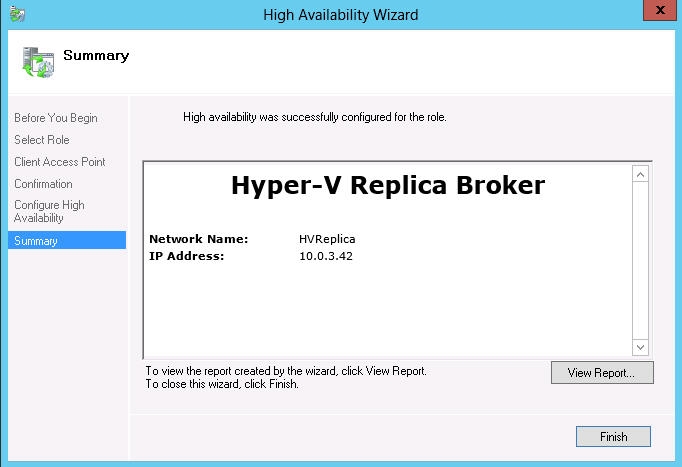
3.       Complete the wizard and type the required information like IP address and name for this object.


4.       Once this is done, you can see the Hyper-V Replica Broker alive and kicking in this particular cluster


5.       After the creation, right click the Hyper-V Replica Broker in Failover Cluster Manager and configure replication.


6.       For the sake of demonstration, I have selected Kerberos, port 80 and allow replication from every authenticated server (AD authentication via Kerberos), and specified the location on one of my Clustered Shared Volumes.


7.       Once this is done, you`d probably like to configure the firewall to allow communication on the dedicated port. I selected port 80 since this port is free and available in my environment for these cluster nodes, and allows communication using this simple line of command: netsh advfirewall firewall add rule name=”HVReplica” dir=in action=allow protocol=TCP localport=80

Remember to run this cmd on every node that is a part of this cluster. What? Of course you could use PowerShell as well, yes.

Next, we have to configure replication on the VMs we want to replicate to this Hyper-V cluster, on our stand-alone Hyper-V server. (Note: you can also configure the stand-alone Hyper-V server to receive replication too, but you do this in Hyper-V Manager on Hyper-V settings, and configure the same settings as in step 6 above.


1.       Right click the VM and click Enable Replication.

2.       Type the name of the Hyper-V Replica Broker you`ve created earlier


3.       Specify the connection parameters and if you want to compress the data that is transmitted over the network. The connection parameters should represent the initial configuration you entered during the setup of the replica broker.


4.       Select which virtual hard disks you want to replicate. In this example, this particular VM has only one virtual hard disk associated with it.


5.       Configure recovery history. If you have needs to have additional recovery points available (for example on your LOB applications that’s runs in a VM) you can configure it here. In addition, you can replicate incremental snapshot using the known VSS service and define the frequency these snapshots are taken.


6.       How would you start the initial replication? Either over the network or using external media. Since I`m several hundred miles from the actual datacenter and the branch office for instance, I will replicate this over the network. But it`s a good idea to use external media so you`re not overloading your network if this is a big VM or several VMs. You can also use existing VM on the replicate server as the initial copy if  you have restored a copy of this VM.


7.       Check the overview of the configuration and finish.


8.       If the communication is allowed and the configuration is completed in a sufficient manner, you`re good to go.

Follow this blog for part two.
Cheers.


Tuesday, March 6, 2012

Live Storage Migration in Windows Server "8" Hyper-V

Demonstrating one of the migration options in Hyper-V in Windows Server «8» Beta What a bunch of awesome new features that is available in this build.
This blog post will cover the Live Storage Migration.
Live storage migration allows you to migrate the storage of a VM (VHD and also the new VHDX) and the configuration files to be moved to new locations. And this will be performed live, while the VM is still running!

So basically, you can move it between SANs, SMB shares, DAS  and so on with no downtime.

The migration will copy every file (virtual hard disks, snapshots and configurations) and the VM will write and read to its destination during this process, and after the copy is completed, the VM will write to both locations (source and destination) while its copying the blocks that has been changed during the copy process. At last there is a clean-up process where the data is synced and the source is finally deleted.

1.       Right click on the VM in Hyper-V Manager (if your Hyper-V host is a node in a Hyper-V Cluster, you`ll get a message indicating that you have to use Failover Cluster Manager to perform this action. It`s a hard block by design, which is good!)

2.       Select Move the virtual machine`s storage and click next


3.       In this example, I`ll move every related file for this particular VM. But also notice you`re able to select files individually if you have special needs for not placing the files on same share/disk/LUN. This is a cheap lab environment and I have nothing to lose.


4.       Enter the location. In this example, I`ll move it to a network share, running on a Windows Server 2008 R2. Click next

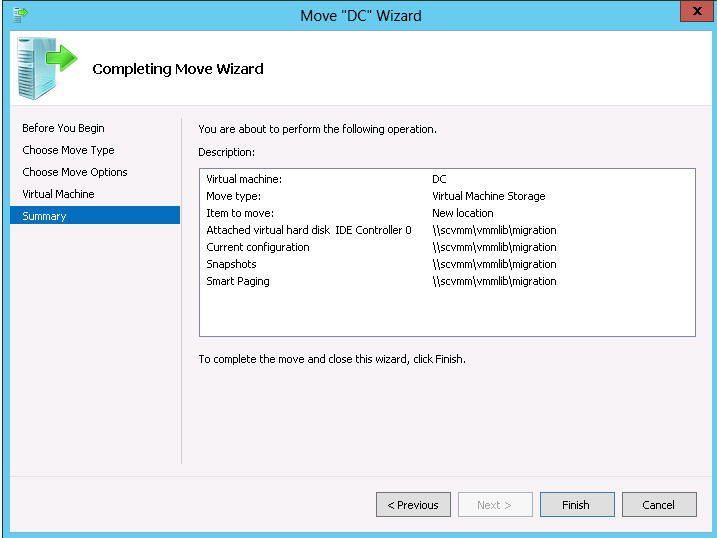
5.       See the summary of the options you have specified and hit the finish button once you are ready


6.       The process has started


7.       And it`s done!

Monday, March 5, 2012

Installing Hyper-V in Windows Server "8"

First of all, I`m a though guy. Currently, I`m located in Seattle and I did a remote upgrade of one of my lab servers in Norway. And you know what? It just works.

So basically, I just want to cover the setup of a new Hyper-V host using some screen shots in case you`re not familiar with the process in the first place.

1.       Either boot from DVD, VHD, or USB. In my example, I used a DVD. Select language, time and currency format and keyboard

2.       Click Install now

3.       Select which version you want to install. As you can see there are two versions. The server core (without a GUI) for smallest footprints and the traditional rich Windows Server with a GUI.

4.       Read through the license terms and eventually accept it and move on.


5.       Select which disk/partition you want to use. You can also select navigate to drive options if you need additional options related to the selected disk.


6.       Files will be copied to the disk and some reboots will be required through the process


7.       The final bits are almost in place,


8.       Enter an administrator password for the built-in admin account


9.       Finalizing your settings before you`re good to go


The next thing that I want to do is quite obviously, enabling the Hyper-V role and see what`s changed in this build.

By default, Server Manager will launch after you`ve logged on to your Windows Server “8”.

A nice fresh looking metro designed Server Manager that also shows some improvements on the management side, like adding several servers and also create a server group. All this for simplified management and streamlined actions across your Win 8 servers.

If you click the ‘Manage’ button in the right corner, this will show some options for either the current local server or an remote server. To summarize, click here when you want to add new roles and features. (If you want to list all the administration tools available on the server, click ‘Tools’)


1.       After you have clicked ‘Add roles’, you can choose from a Role-based or feature-based installation, or a Remote Desktop Services scenario-based installation. Select the first one since this is a traditional Hyper-V deployment on a single host.


2.       Select a server from the server pool or a virtual hard disk. As mentioned above, you can add and create a server group. If you had several servers in this group, you could have selected a remote server and deployed Hyper-V. The VHD option is currently untested by me, but it`s pretty self-explained what this means. It will mount the VHD and enable roles/features within the file.


3.       Navigate to the Hyper-V role and click Next.


4.       You get information about the installation itself and what you`re able to do during the install, or simply do it afterwards.


5.       Select a dedicated physical NIC presented in the host for the Virtual Switch (yes, it`s now called virtual switch instead of virtual network. Simplified, right? J)


6.       Some pretty new improvements related to VM migrations in this build, so you must decide which protocol you`d like to use for this purpose if you want to allow this server to send and receive live migrations of virtual machines. Also note that if you intend to cluster this Hyper-V host, you should not enable migration now, but configure it during the creation of your Hyper-V cluster – and use dedicated networks. BTW, this is very useful information at this stage. Remember in the 2008 R2 version, where you had to investigate to find the network for live migration, hidden on the settings of a random VM?


7.       Select location for both virtual hard disks and VM config files. This server is not a part of a cluster so I will actually specify the locations at this time.


8.       Confirm the selections and eventually mark the ‘Restart the destination server automatically if required.


Once it`s done, you are free to deploy virtual machines. Follow this blog to participate in the next excited post about the subject.