Sunday, March 4, 2012

Windows Server "8" Beta Jump Start

What you`ll see here, is the beginning of a new era. This is what`s all about, the true cloud operating system. No more show stopping. It`s all here!

To get a jump start, I`ll suggest you read a couple of blog post by some of my fellow MVP`s on the subject.

First thing first, click on this link to read the glossary that Aidan Finn wrote. This list should open your eyes and probably let you have some ideas of what might be possible in this build. (Example: think of the possibilities with the SMB File Cluster for scale out applications, using the new SMB protocol together with a new Hyper-V Cluster. If you`re able to achieve any down time for your VMs in this environment, you`re doing something seriously wrong ;-)

Some other useful links related to the subject.

Hans Vredevoort with Using Win Server 8 as VHD to go


Hans Vredevoort with Testing Hyper-V Server 8 Beta


To be honest, bookmark those blogs if you`re interested in catching up on all the new and excited features in Win Server 8, and especially Hyper-V 3.0


Monday, February 20, 2012

SC 2012 Integration Packs - VMM

What do you get if you give steroids to the Windows Task Scheduler?

-          System Center Orchestrator


Orchestrator empowers IT pros as well as developers to easily develop Runbook that interoperate with 3rd party systems to automate datacenter workloads. With a simple drag and drop interface, you`re able to do whatever you want, and a little bit more.

System Center 2012 will play a major role for the IT pro, and Orchestrator will be another mind shift in the cloud stack, with reference to automation and best practice.

Orchestrator includes over 41 built-in workflow standard activities that perform a wide variety of functions and tasks. For the integration with 3rd paty platforms and products, and of course also Microsoft products, you can install integration packs (IPs) which will contain additional activities that extend the functionality of Orchestrator.

To summarize: System Center 2012 – Orchestrator is the glue in your private cloud.


How to register an Integration Pack

After the download, you have to register the IP with the Orchestrator management server and then deploy it to a runbook server that has the Runbook Designer installed.

1.       Start the Deployment Manager, expand Orchestrator Management Server, right click Integration Packs to select Register IP with the Management Server. This will start the Integration Pack Registration Wizard. Click Next.


2.       In the Select Integration Packs or Hotfixes dialog box, click Add, locate the .OIP files, click Open and then Next. Finish the wizard and accept the End User Agreement (after you`ve read the Microsoft Software License Terms)


How to deploy the integration pack

1.       In the very same Deployment Manager as mentioned above, righ click Integration Packs and click Deploy IP to Action Server or Client. Select integration packs you want to deploy and click Next. Enter the name of your runbook server, add, and click next.


2.       Choose a time to deploy, select Schedule Installation and finish the wizard. If you don`t schedule an installation time, the IP will be deployed immediately after the wizard.

 Getting started with the VMM IP

1.       Logon to your runbook server and click Options and SC 2012 Virtual Machine Manager


2.       Type a name for the connection and select the proper type (in this case, Virtual Machine Manager).


3.       Configure the connector by specifying VMM configuration data and authentication. (Make sure that you have configured the authentication you choose in your environment prior to this, or else it might fail).


4.       Once this is done, you have several new options to the right in the Runbook Designer.


5.       Have fun!


Thursday, February 9, 2012

Getting started with Services in VMM 2012

Dear community,

If you`re not familiar with Services in VMM 2012, I have created a tiny document where I`m trying to explain it a bit with my own words and by using a visual guidance.
Hopefully some of you will find it useful.

Download / view it from here: Getting started with Services in VMM 2012

Cheers.

System Center 2012 RC Integration Packs

Finally available.
Now it`s time to explore the glue in the System Center 2012 family. System Center Orchestrator will force the technologist to perform a mind shift. Start focusing on best practice and create automated processes so that you finally can watch all the youtube videos you want, read newspaper and drink all the coffee you can get your hands on! :-)

Read more about the release here: http://blogs.technet.com/b/server-cloud/archive/2012/02/08/microsoft-announces-availability-of-system-center-2012-release-candidate-orchestrator-integration-packs.aspx

Monday, February 6, 2012

Microsoft Private Cloud Book


2011 was such an exciting year. I became a Microsoft MVP the 1th July, and also published my book later that year. Of course it was about Cloud Computing – using Virtual Machine Manager 2012 (written in Norwegian).

A couple of weeks later, I received one of the best e-mails ever. From Mr. Aidan Finn!
And the CC`s on that mail, were the likes of Hans Vredevoort, Damian Flynn and Patrick Lownds.
They informed me that they were working on a book. “Microsoft Private Cloud” – focusing on Virtual Machine Manager 2012, and they needed a technical editor.
To get quickly to the point: I did not hesitate a single moment, and was happy to confirm that I would accept this great honor.

So my job with this book is related to review the technical content and make suggestions where it`s needed. Actually, this is a luxury job. With so many skilled authors and technicians on the team, you should prepare yourself for a really good, technical and academically compelling book, covering all the details you would require to be successful with your private cloud implementation.


Wednesday, January 25, 2012

The real deal - Services (Part Two)

If you have tested the deployment of services in VMM 2012, you`re most likely familiar with the Stock Trader Service. You`re able to import this service into your VMM Library. (Check this blog post)
Instead of just deploying this service and show you some screenshots, I`ve de-coupled the service so I`m able to create it from scratch using VMM 2012 and explain the details and see how the Stock Trader service is built and designed.
Remember that VMM 2012 has native support for Web applications, Server App-V applications and SQL data-tier applications.

Creating and deploying a multi-tier service

Let`s pretend that we`re working close with some of our developers and actually know how this application is meant to work.

We also know that this application would require a SQL database server, two middle-tiers and a web-tier. The web-tier should also be able to scale out since it`s stateless and would therefor need a load balancer.

Step 1 – Creating the VM templates

The big hitch in cloud computing is the software dependencies. But with VMM 2012 you`re able to have loosely coupled services like web applications and Server App-V applications. To summarize, you only need a sysprep`d VHD with for example Windows Server 2008 R2 installed.

The SQL Database server requires a Microsoft SQL Server and VMM supports SQL Server Profiles in the Library (containing SQL configuration, service accounts, defines SQL Authentication or/and Trusted Authentication, installation media, TCP/IP and Named Pipes ++) which means we can deploy SQL server as part of our service during the deployment. However, the VHD-file that is used must be sysprep`d with a sysprep`d SQL server as well. (Check this blog post)

To summarize again: Sysprep 2 Windows Server 2008 R2 VM`s where one of them also have a sysprep`d SQL server. Right click your VMs in the VMs and Services view in VMM and click ‘Create’ and ‘VM Template’. VMM will now sysprep your VMs and place them in the library share that you specify.



Step 2 – Preparing the applications

Ok, our developers have sequenced the applications for our middle-tiers by using Server App-V.

If we take a closer look at the packages, we can explore the manifest.xml-files.

These files will show which server roles, server features and any other components that`s required for our VM template to work. The good news is that VMM is able to detect this when you add the application to the template.

Tip: if you know exactly what you`re doing when you`re sequencing your applications, you can have a package ready in a couple of minutes and you`re good to go. However, you`ll most likely have to test the sequencing process again and again and again to be sure that you have done everything correctly. In some cases, your applications are not suited for the Server App-V. But since this would require some testing (I guess) you should create a VM, install the Server App-V sequencer agent – which is included in your VMM setup and available in the library, and use checkpoints/snapshots during your testing. This is a scenario where snapshots are very neat and helpful.

VMM also includes WebDeploy so that you easily can import web applications to your IIS servers. For more information about WebDeploy, click here.

Basically, you install the WebDeploy kit on your web servers, export the application in IIS, and then you`re able to import these applications in to another web server (IIS). In some cases, you can also virtualize these applications by using Server App-V.

Our applications would also require some data-tier applications as well, and VMM has support for this too. A data-tier application (DACPAC) is an entity that contains all of the database and instance objects used by an application. A DAC provides a single unit for authoring, deploying and managing the data-tier objects instead of having to manage them separately. A DAC allows tighter integration of data-tier development with the development of the associated application code. It also gives administrators and application level view of resource usage in their system.

You can extract the data-tier applications by using SSMS 2008 R2.

For more detailed information about SQL data-tier applications, check this site.

Step 3 – Working with Application Profiles

Some new improvements in VMM are related to the Library. When it comes to your applications, you can create application profiles that are loosely coupled with your virtual machines, so you`re able to use them over and over again, with no need for sysprepping your VMs with the applications already present and installed.


Your application packages must be stored in the library and indexed by VMM. The default refresh interval is set to 1 hour but you can do this on demand manually by right clicking your library server/share and click refresh.

So since the service we`re about to deploy is based on the native applications that VMM supports, we will create some application profiles that will install the Server App-V agent and WebDeploy.

WebDeploy and Server App-V is stored default in the library, and when you add a new library server, you have the option to import the default Application Frameworks into the library (which contains Server App-V sequencer and agent, WebDeploy and scripts that would install this automatically during service deployment.

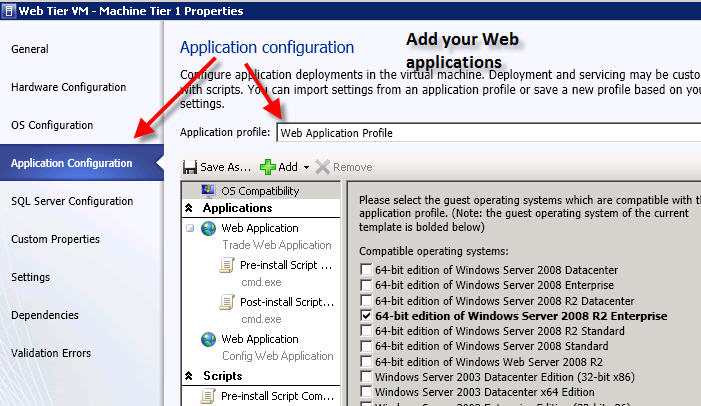
To install these components, you must add a script to the application profile.
Since you would require either WebDeploy or Server App-V agent to be installed prior to the applications, you would normally create a Pre-install script.
Specify the executable and the parameters, and browse to the package located in one of your libraries. Select a Run as Account with proper permissions to install the package in the virtual guest OS.
In addition, you can specify advanced scripting logging for troubleshooting in case the deployment fails.


Once this is configured, you may add the applications and applications scripts required to get the applications up and running. It really depends which application you`re dealing with, and you should work closely with your developers/application owners to get this correct, and fill in the required parameters and instructions for the installation of the applications.

The example above shows the deployment of WebDeploy and a web applications with application scripts.
The same rules apply for the Server App-V applications and SQL data-tier applications.  

Step 4 – Working with the Service Template Designer

We`ve now got our application profiles and the VM templates configured and stored in the Library.
Navigate to the Library workspace and select Service Templates, right click and click Create Service Template.

This will launch the service template designer.

VMM ships with some patterns to get you started really quick. Either a single-tier template or a multi-tier template.

We will start from scratch in this example.


As you can see, you can drag your VM Templates into the designer. We need four VMs for this service, and will therefor use a VM template which contains the sysprepped SQL server, and an empty sysprepped VM for the rest of our tiers.

Let`s start by configuring our SQL Server VM.

This tier would require a SQL server and the SQL data-tier applications. From the service canvas we`re able to click on the ‘Add application’ button and select profiles and applications from our library. (You can also configure the HW and OS profiles for your VMs – directly from this view).

Now, let`s do the same for our middle-tiers and add the Server App-V applications

Now, we have to add our web applications to our web tier.
Since our web-tier should be able to scale out, we must also configure a load balancer. The good news is that Microsoft NLB is integrated into VMM by default, and the only thing you have to do is to create a VIP Template. In this example I`ve created a HTTP VIP Template and associated it with the NLB load balancer in Network in the Fabric view. Once you have done this, you only have to add the NLB feature in the OS configuration on your VM template – along with any other required Web-roles/features to get your web-tier up and running.

VMM knows immediately that this tier should be able to scale out, and during the deployment installs and configure NLB automatically, after you have added the load balancer into the service canvas and defined the connectivity, and set the scale limit.


After you have added all the required profiles, applications and configured the VMs, you should ask yourself: how would I normally deploy this service if I did it manually?

Eventually, this leads us to the Application Deployment order.
In this example, I want my SQL server to be deployed first so it`s able to receive connections and data from the other applications, since they rely on this tier. Second, I want my web-tier to be deployed, and my mid-tiers as number 3 and 4.

Once you have configured all this and feel quite satisfied, you can save and validate the configuration. If there are any errors related to the configuration, VMM will notice you before you go any further.
If everything seems fine, click Configure Deployment, give your service a name and place it either on a host group or a private cloud.

Once you click ‘OK’, intelligent placement will kick in and check where the service should be able to run. If everything is OK, you can start the deployment of your service.

I will most likely create a webcast that demonstrate the entire process in the near future. Please give me a note if you have any questions etc or want me to cover.

The next blog post will focus on the service lifecycle in VMM.

Monday, January 23, 2012

The real deal - Services (Part One)


I was wondering if I should try to create a white paper about «Services» in VMM 2012. But I found out that a bunch of blog post would be more suitable, and also less formal than a white paper.

What is a Service?

From the early beginning of Microsoft Private Cloud, they stated very loud and clear that they were able to focus on the real deal, - services.

If you`re familiar with Windows Azure, you may recognize the term ‘Service’ as in hosted services in the Windows Azure portal. It can be a VM Role, Web Role or a Worker Role. But that`s for Azure. There are some architectural differences between the service concept in Microsoft Private Cloud (VMM) and in Microsoft Public Cloud (Windows Azure).

Let`s talk shortly about both of them before we go any further.

In Windows Azure, you can create hosted services. These services are created in Visual Studio 2010, and as mentioned earlier, either a VM Role, Web Role or a Worker Role. For the Web and Worker Role, you`ll get a configuration file and a package. Upload these files to the Windows Azure portal (or you could simply use System Center App Controller for that) and you`re good to go. Prior to this, you must have signed up and created a Windows Azure Subscription.

The beauty of the Platform as a Service model is that Windows Azure will take care of everything. Define how many instances you`d like and Azure will configure the required VMs, and eventually place them behind a load balancer and a VIP template.

-          Ok, brilliant. But what about the storage?

That`s a very good question Kristian.
When you`re working with Windows Azure – think stateless, stateless and stateless. Also when it comes to the VM Role. You should use one of the storage options in Windows Azure, and there`s several options here as well. Binary Large Objects (Blobs), Queues, Tables and SQL Azure. Now, if you plan for a massive scalable storage solution, use Blobs. This is the cheap storage solution for you hosted services, and if you`re creating an application that will not update the content quite frequently, you can also take advantage of the Content Delivery Networks (CDN) – so that you`re closer to your users, which gives them a better user experience. If your applications require some sort of relational data storage, use SQL Azure.
That was a really short summary of the service architecture in Windows Azure.
And since I`ve got your attention: if you`re an ISV and have not considered Windows Azure as a platform for your developer projects in the future: shame on you. J

In the private cloud where Virtual Machine Manager 2012 plays the most important role, there is also a service concept.
Actually, I`ve blogged about this before. Get a quick introduction by reading this post first: http://kristiannese.blogspot.com/2011/07/understanding-service-concept-in-vmm.html

Welcome back.

As you can see, there are some similarities in both clouds. Reminder: think stateless!

If you plan to scale out, scale out the tiers that`s suitable for this scenario. Stateless!

In VMM 2012 – you can create Virtual Machine Templates, but also Service Templates. A service template is the starting point for your services where you configure virtual machines and connectivity requirements. The service template is more than just a template, because VMM is able to support the life cycle of your applications. So every deployed services are always linked to their templates so you can do servicing of the instances.

Now, what`s an instance?

An instance could be groups of machines that work together which includes machine definitions as well as applications. There is support for these native applications types in VMM: Web Applications (WebDeploy), Virtual Applications (Server App-V packages) and Database Applications (SQL DAC). You can create application profiles in the library so that you can use them over and over again.

For more information about the new improvements in the library of VMM 2012: http://kristiannese.blogspot.com/2011/04/sorting-things-out-in-library.html

So before we go ahead and look closer at the service concept in VMM 2012, why would you consider using services in the first place?

A service can be a single tier service or a multi-tier service. And you are able to configure and manage multi-tier applications as a single entity.

Example, you may have an application that your organization has developed, or you are testing and doing some research on an application from a software vendor. Anyhow, this particular application is comprised of a web server, a database server and an application server which should be considered as critical for your business. Call it a line-of-business application – the one that your CEO really cares about.

Since this one is important, you want this application to be alive and kicking 24/7 – no matter what happens related to traffic and peaks. VMM enables you to handle fluctuations in capacity for your application, allow you to easily add or remove virtual machines (hey – please think ‘stateless’) needed to support the application.

This is the beauty of cloud computing, the cloud workload patterns:


The next blog post will discuss the service designer in detail.

Cheers,